After you have added an accountant to the application form and he has completed all the necessary work, you should sign the application, pay the state duty and send it to the registry.
Step 1. Login to the e-Business Register (https://ariregister.rik.ee/eng) by pressing the LOGIN button and selecting the appropriate authentication method. For example, ID-kaart if you are using e-Residency card. At this step you will need the PIN1 of your card.

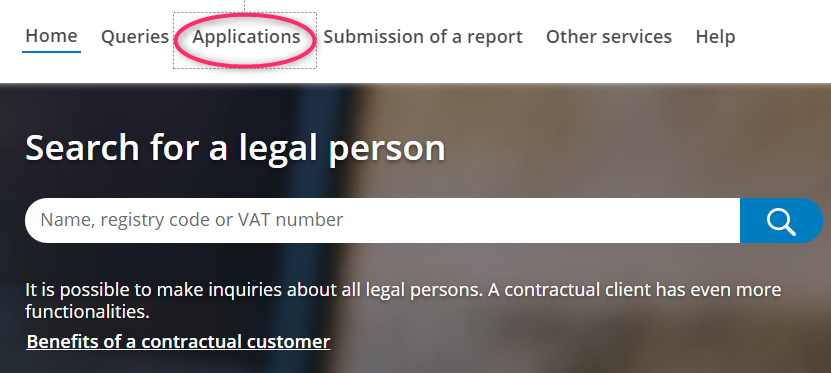
Step 2. Click on the Applications button in the top menu.
NB! If the language is changed to Estonian, select English again.
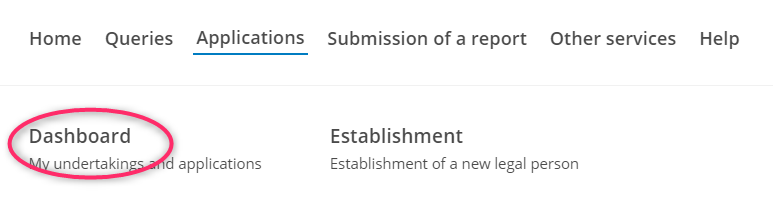
Step 3. Press the Dashboard button.
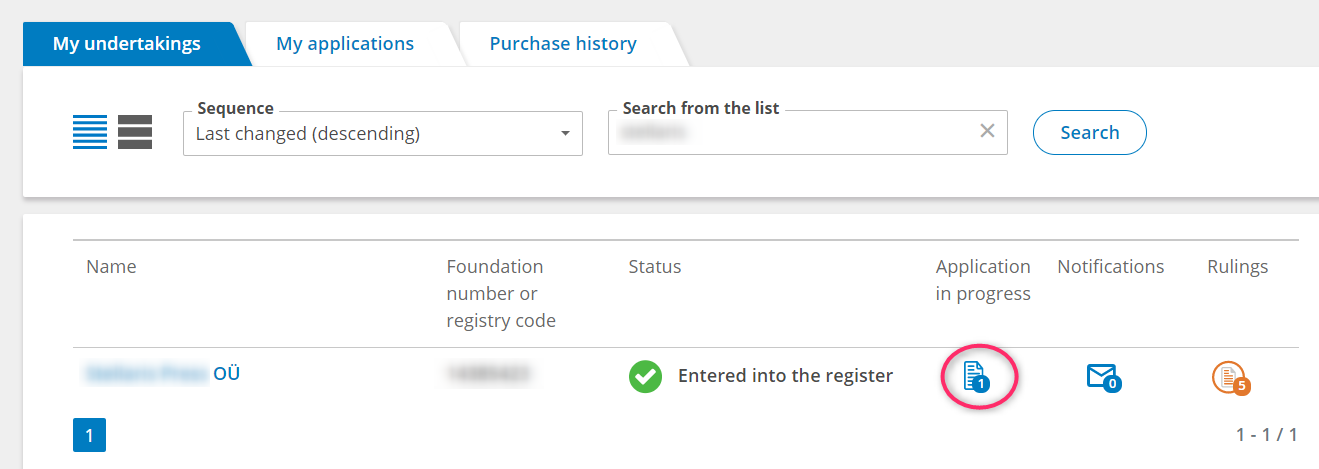
Step 4. On the page that opens, you will see the companies. Find the company you need to sign the application for and click on the application icon under the Application in progress column.
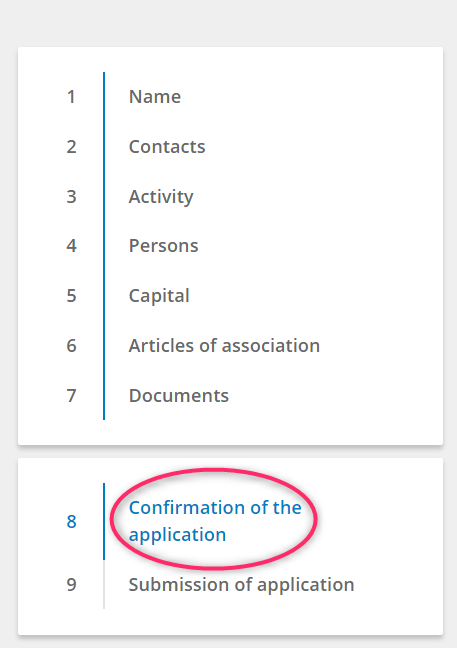
Step 5. Check that step eight - Confirmation of the application - is selected on the page that opens. If another step is selected, click on the name of the eighth step.
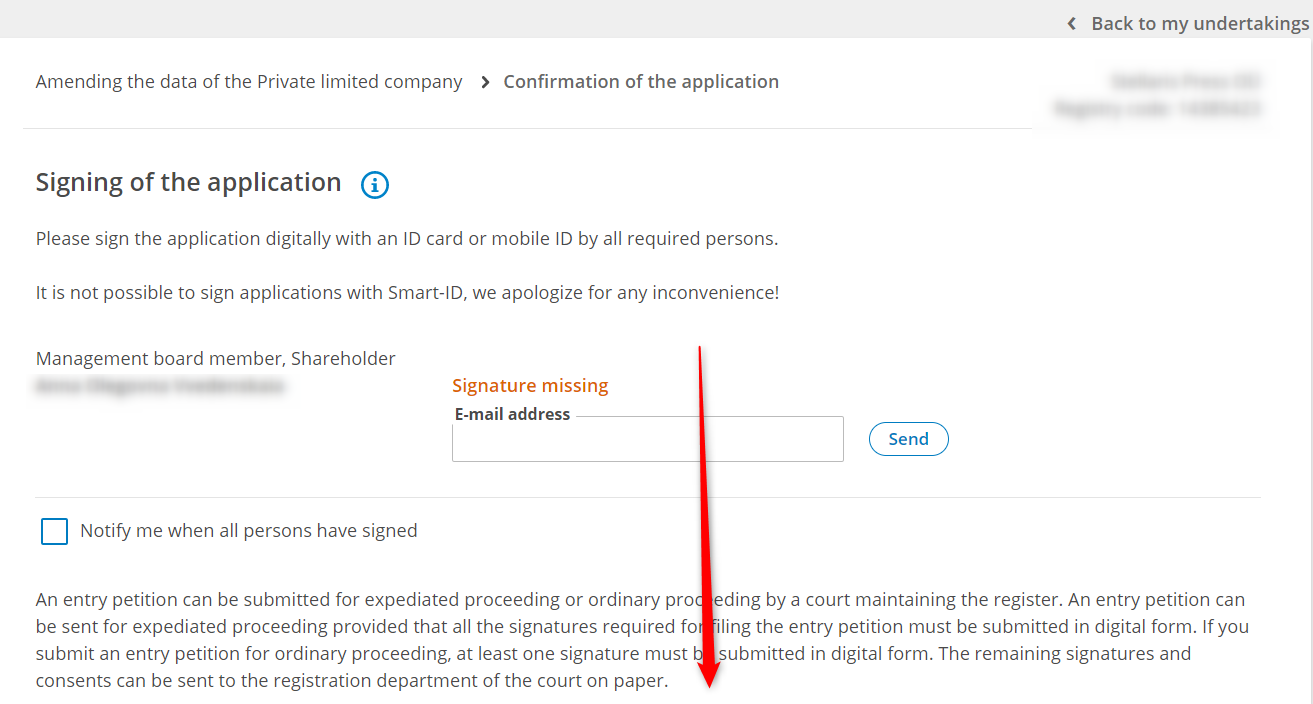
Step 6. The step of signing the application looks like the picture below. You need to scroll down the page to sign the application form.
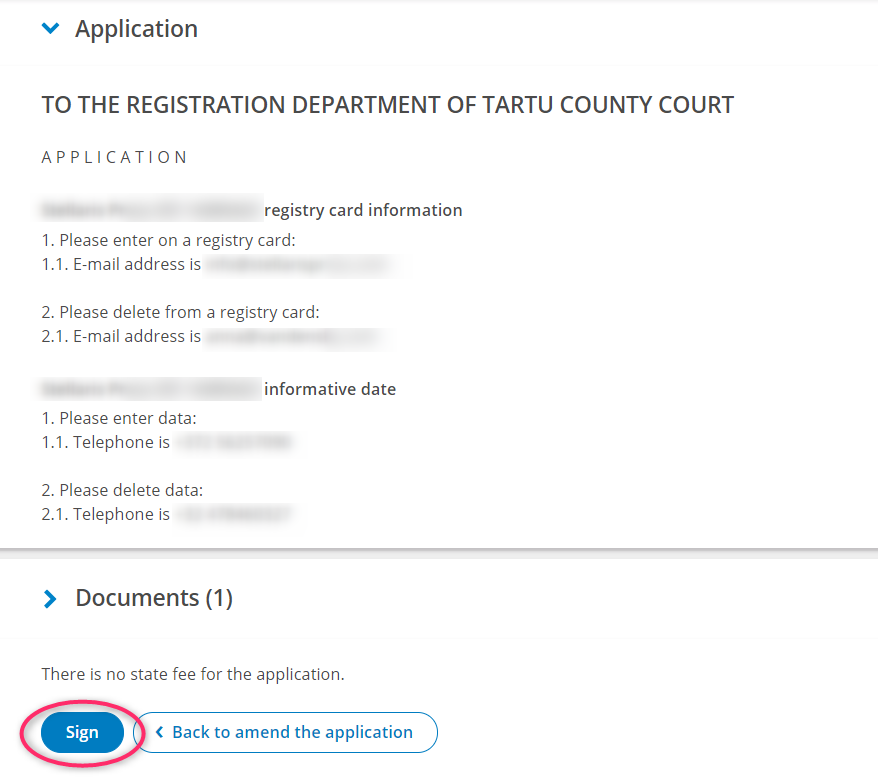
Find the Sign button. To sign the application, click on the Sign button and follow the instructions. You will need the PIN2 of your e-Residency card to sign the application form.
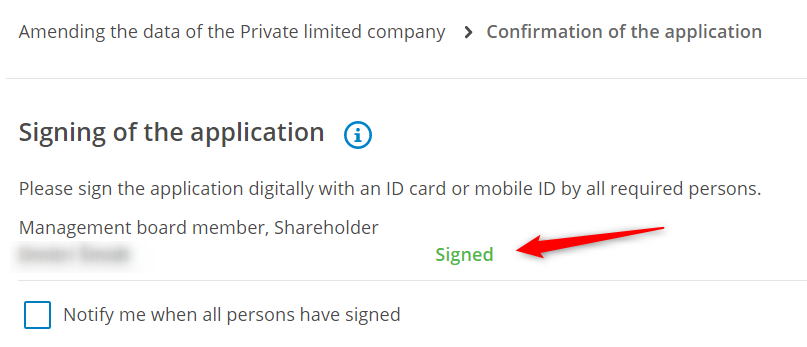
Step 7. Check that the Signature status has changed to Signed with a green seal. You can then confirm the signatures by clicking on Confirm the signatures button.
Step 8. Scroll to the bottom of the page and click on the Next button.
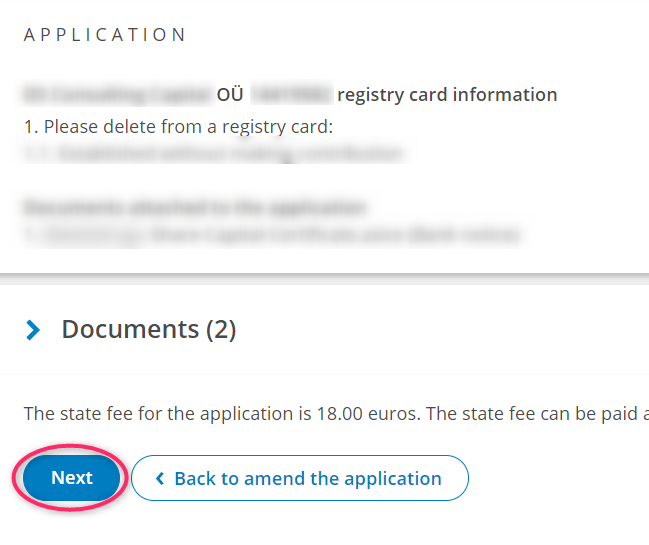
Step 9. As a rule, the state fee for reviewing the application is 25 euros.
NB! If the application concerns a change in the company's contact details and does not entail a change in the articles of association, there is no state fee. In this case, skip the payment steps and go straight to step 11.
If you have an account in an Estonian bank, pay the state fee using the bank link.
If you don't have an Estonian bank account, click on the button Payment of the state fee at a bank branch or via an Internet bank.
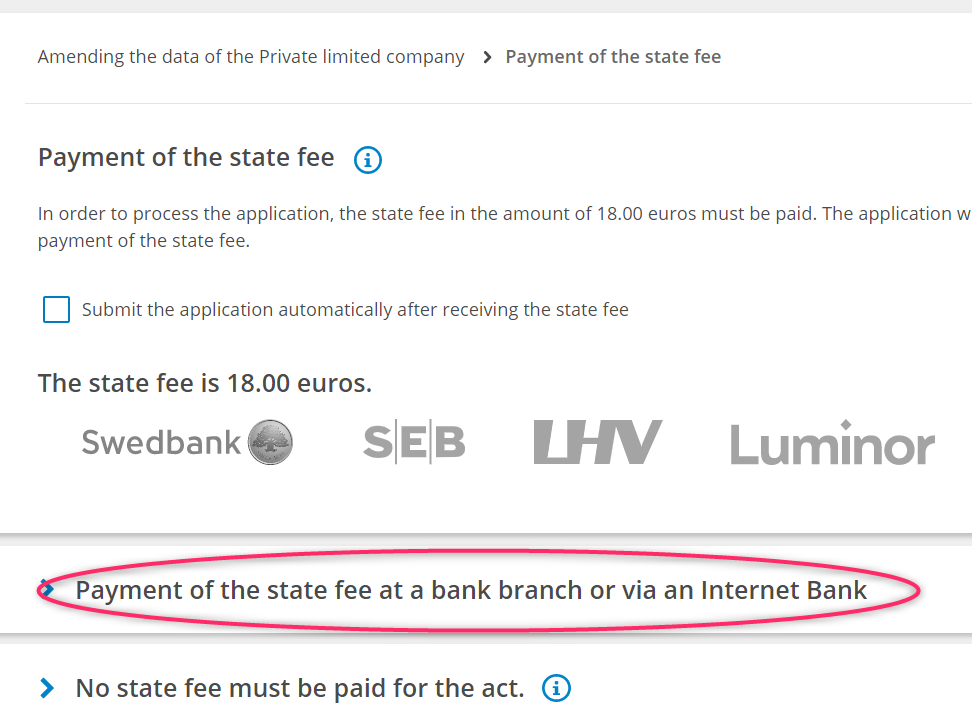
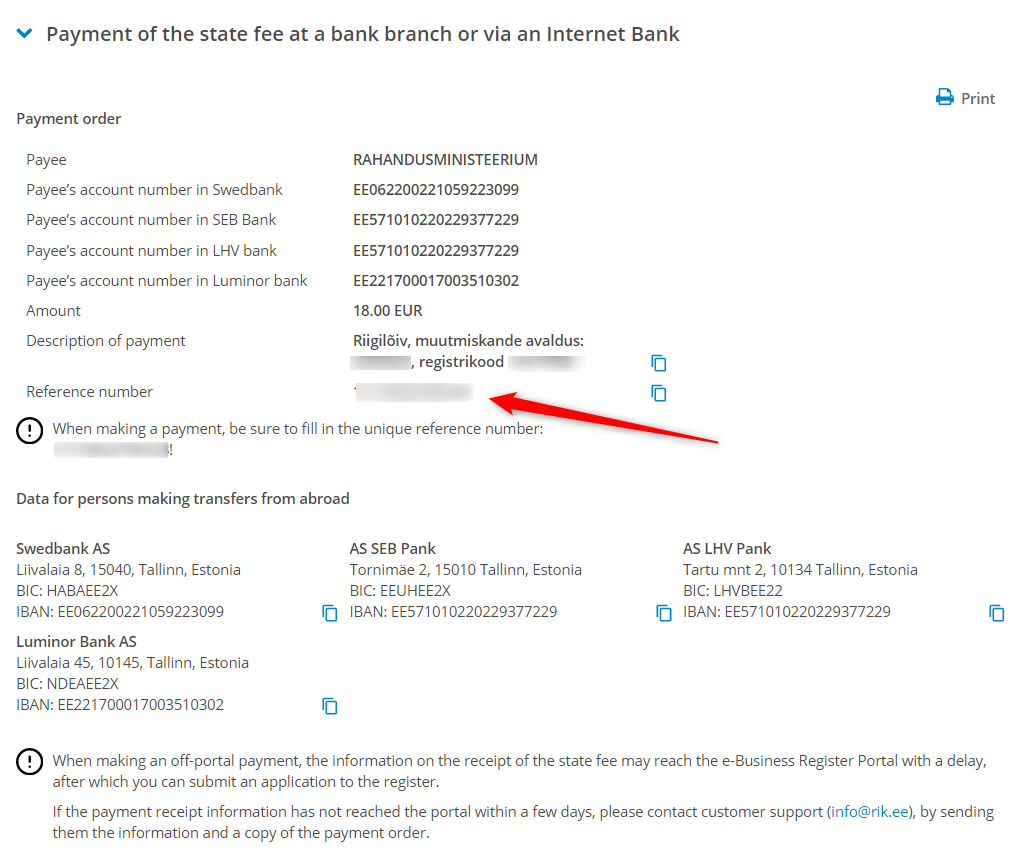
Clicking on this button will open the details for payment.
NB! Making a payment in your bank, always indicate the Reference number. If your bank only allows you to choose either Reference number or Description, choose Reference number.
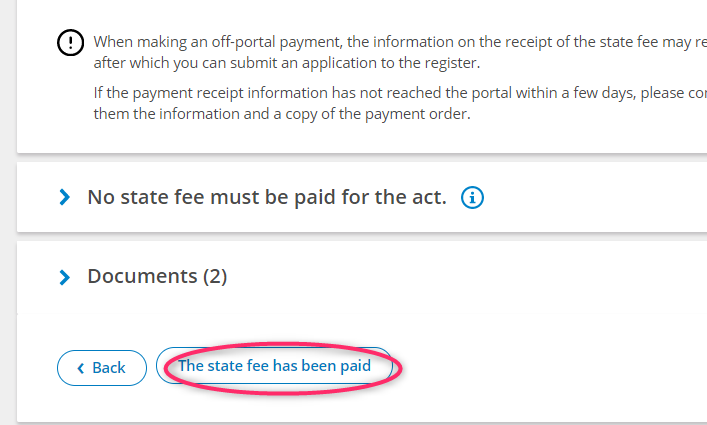
Step 10. After payment, click on the button State fee has been paid.
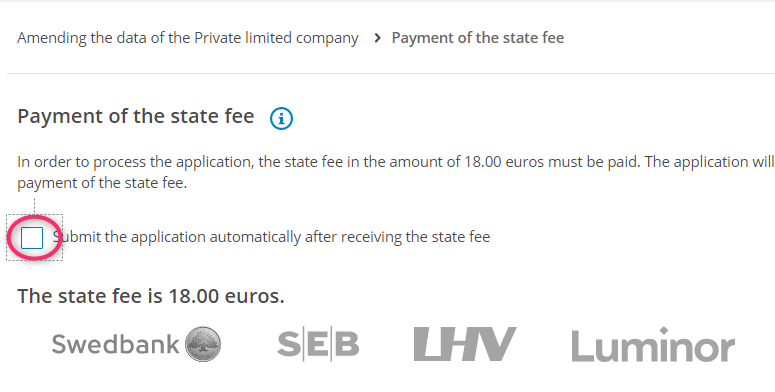
Or put a note at the top of the page that the application should be automatically submitted after the Estonian Ministry of Finance has received the state fee. Then, after receiving the state fee, the application should be sent to the register automatically. But it is better to check it after a couple of days anyway.
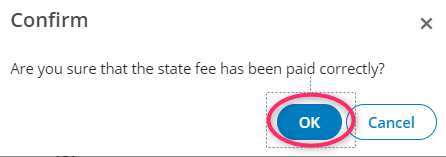
If you have selected the option of clicking The state fee has been paid, click OK in the next dialogue box.
Step 11. Press the SUBMIT APPLICATION button
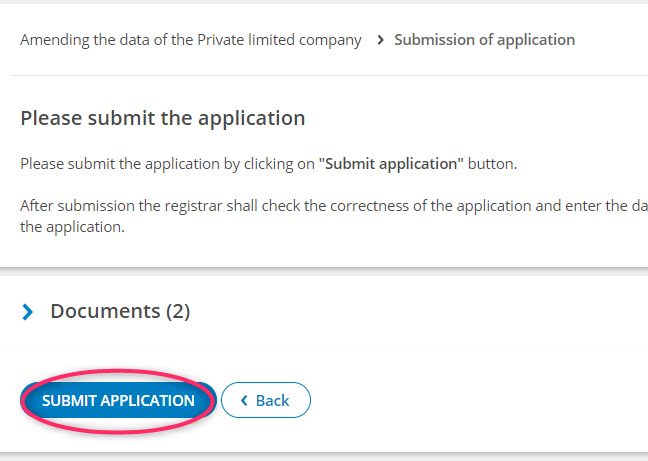
The system will inform you that the application has been successfully sent to the register.