The old eSTAT environment is gradually being replaced by the new uuringud.stat.ee self-service. The instructions below cover the standard way to give access to an accountant who has an Estonian personal ID code and can sign in with an ID-card, Mobile-ID, Smart-ID or EU eID.
Who can grant access
A user can be added by:
- a management board member or another company representative recorded in the Commercial Register;
- the company’s current Main user / Peakasutaja.
A regular Data reporter / Andmeesitaja cannot add, remove or block other users. Before you begin, obtain the accountant’s personal ID code, name, e-mail address and telephone number.
Add the accountant
-
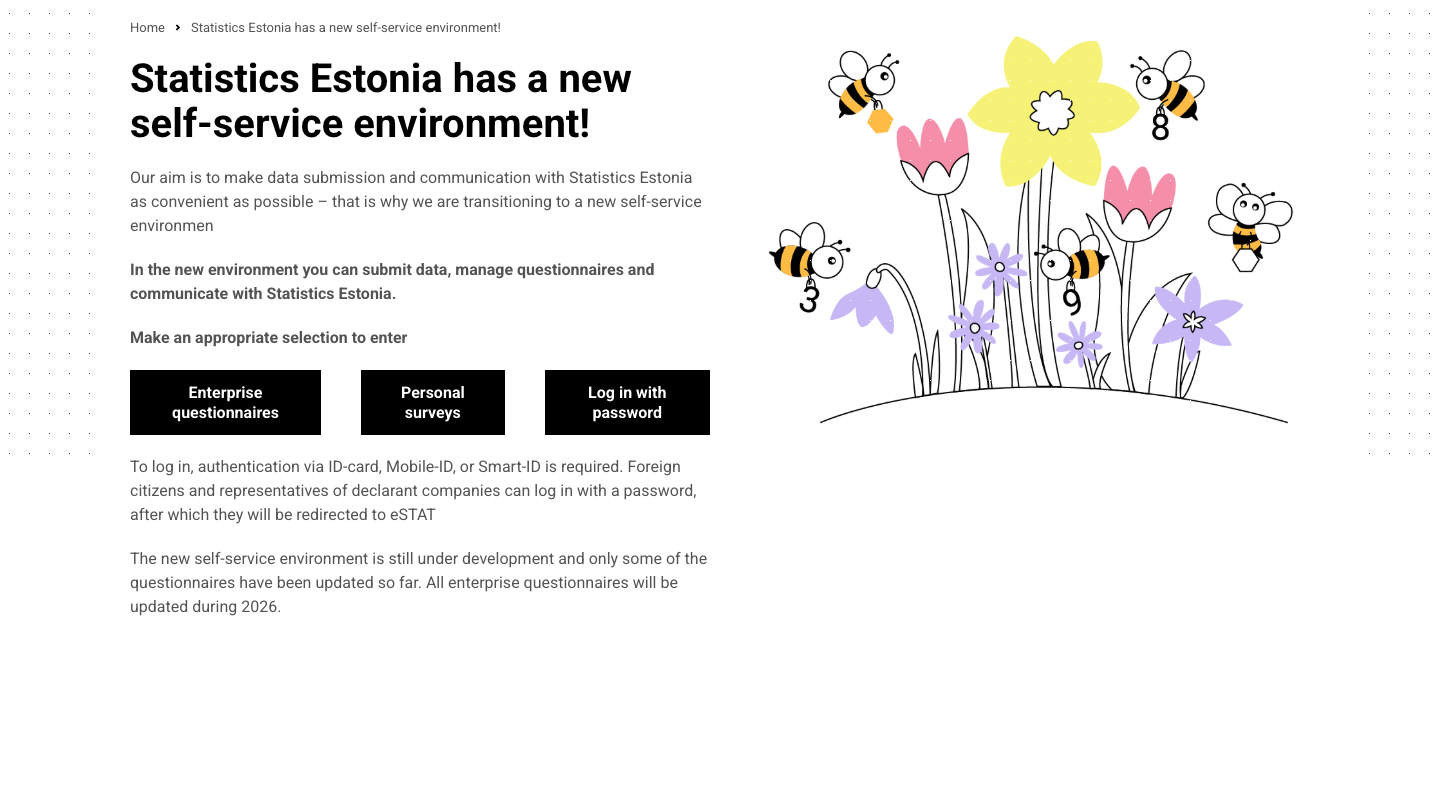
Open uuringud.stat.ee and select Enterprise questionnaires.
-
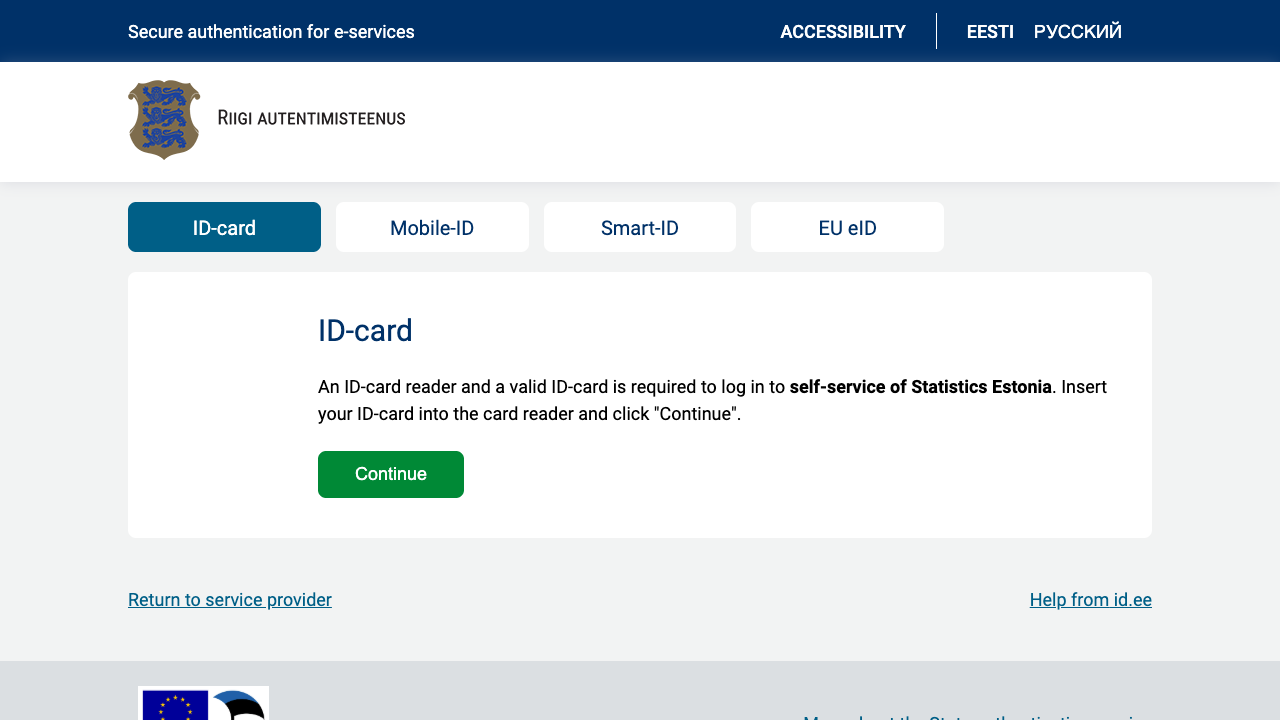
Sign in with an ID-card, Mobile-ID, Smart-ID or EU eID.
The Dashboard opens after authentication. In the My economic entities table, click the required company row or the arrow on its right. If you have many companies, use the pagination under the table. The selected company opens in Questionnaires.
Select the user icon in the left sidebar, then open Users and contacts → User management. After selecting a company, you can also open uuringud.stat.ee/respondent/customer/users directly.
-
Select Add user and enter the accountant’s details:
- Country of issue;
- ID code;
- First name / Last name;
- E-mail / Phone.
Under Role, select Data reporter / Andmeesitaja. Do not appoint the accountant as the main user unless they also need to manage other users’ access.
-
Under Questionnaire rights, select:
- Add rights to all questionnaires for all current and future questionnaires; or
- Add rights to some questionnaires for selected questionnaires only.
Select Save. The accountant can then sign in at uuringud.stat.ee with their own electronic identity and select your company.
If a company or button is missing
- You do not have the necessary rights for user management means that your account does not have main-user rights for the selected company.
- If the accountant already had valid eSTAT rights, Statistics Estonia migrated those rights to the new self-service automatically.
- Foreign users and representatives of declarant/accounting companies who use a password are currently redirected to the old eSTAT environment. For this type of access, contact Statistics Estonia at klienditugi@stat.ee or +372 625 9300.
The screenshots above cover the public sign-in flow only. The names of the authenticated menu items were checked against the current self-service interface on 30 July 2026.