Share capital contribution
First of all, you should make a money transfer from your account of an individual to the bank account of your company.
The transfer amount is determined by the share capital stated in the articles of association and in the company card. For new OÜs, since 1 February 2023 the minimum share capital can be 0.01 euros per shareholder, so 2,500 euros is no longer the mandatory minimum. If your company was established earlier without making the contribution, check the share capital amount in the register and transfer that exact amount.
Please include in the explanation "osakapitali sissemakse", this means "contribution of share capital" in Estonian.
A bank notice
After making a money transfer, you should ask your bank for a notice of paid-in share capital with the bank's digital signature.
NB! For companies established under the current procedure, the share capital contribution is often confirmed during incorporation. For share capital up to 50,000 euros, a bank notice is usually not required at incorporation, but for older companies established without making the contribution, follow the current e-Business Register application requirements or check with your accountant.
NB! This certificate can only be issued by a bank or payment system, which works with IBAN. PayPal will not issue such a certificate.
The bank should send you a file in .asice format.
For example, this is what this file from Wise looks like.

Registration of share capital in the register
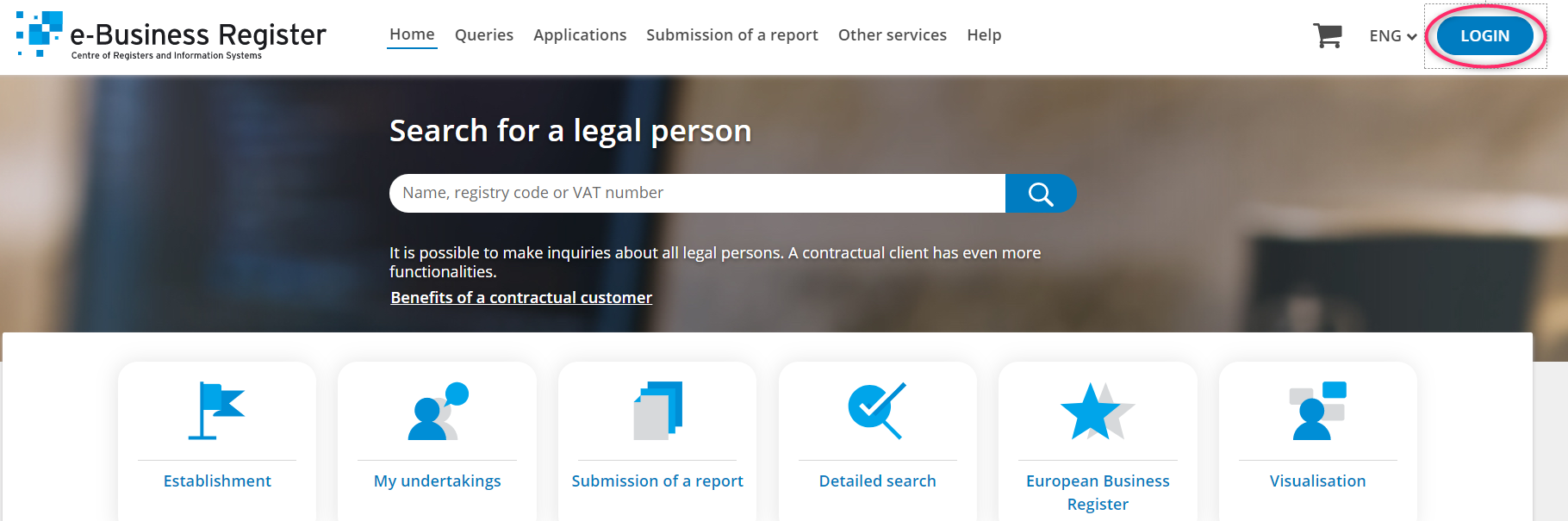
Step 1. Open the e-business register website https://ariregister.rik.ee/eng and click on the LOGIN button.
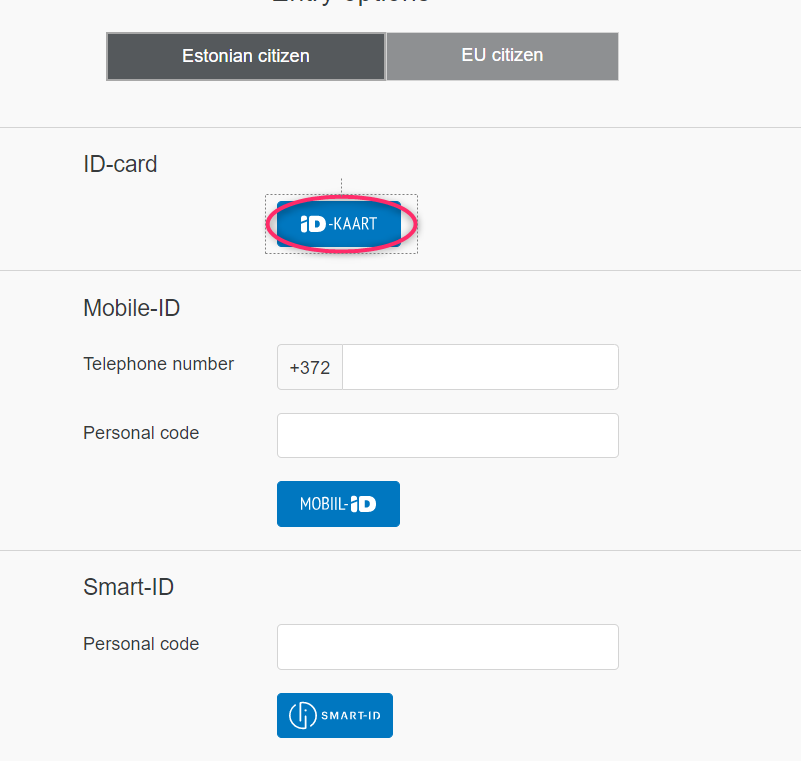
Step 2. Select the appropriate authentication method. To log in with e-Residency card, press ID-KAART button. Then select the certificate and enter the PIN1, then press OK.
Step 3. Choose English again if you don't speak Estonian.

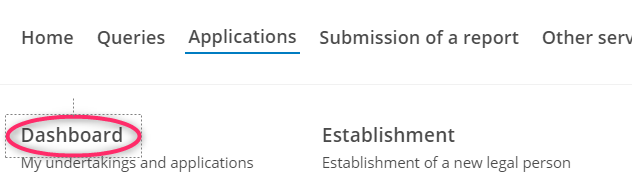
Step 4. From the top menu, press the Applications button.

Step 5. From the drop-down menu, click on the Dashboard button.
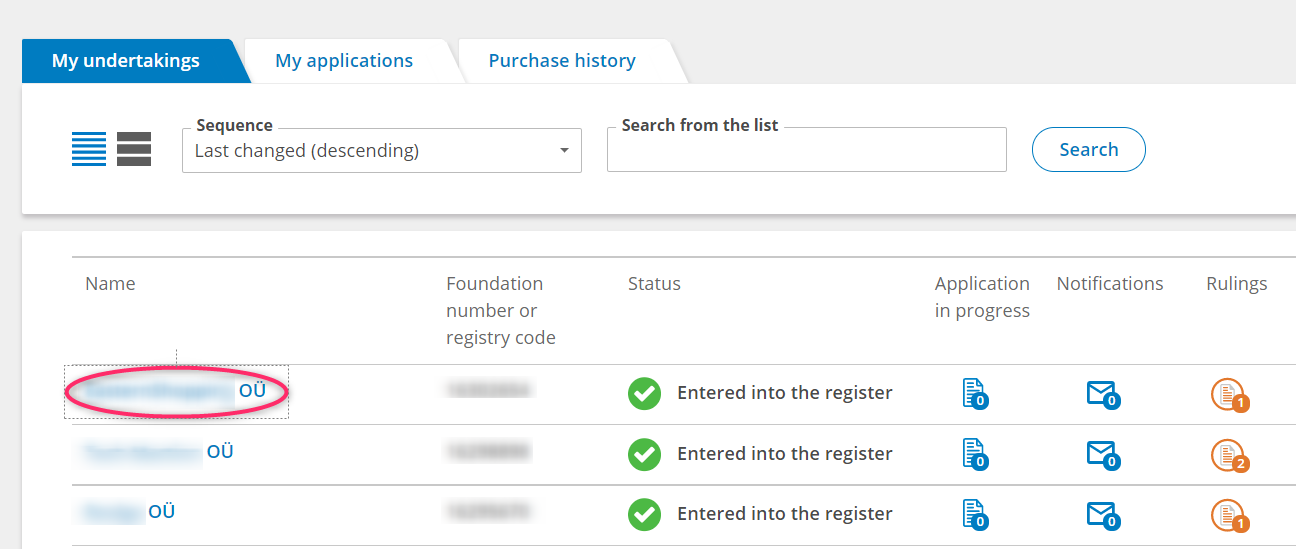
Step 6. In front of you there will be a list of companies associated with your personal code. Select your company by clicking on its name.
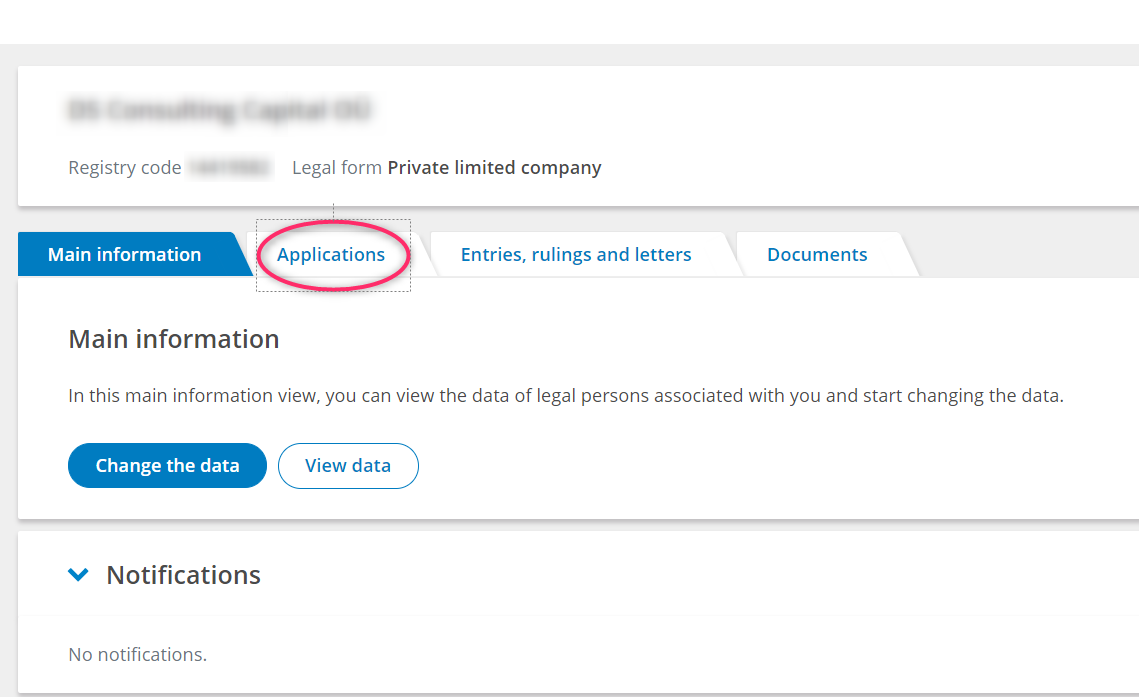
Step 7. Click on the Applications button.
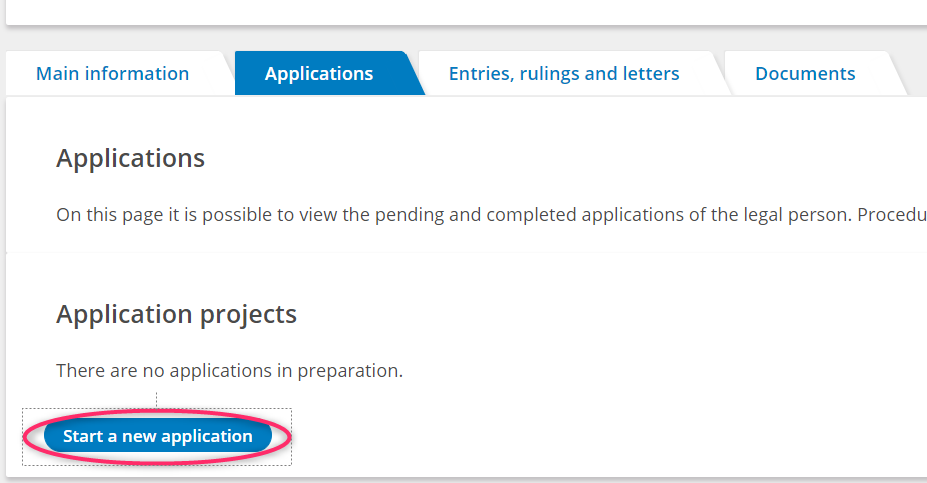
Step 8. Click on the button Start a new application.
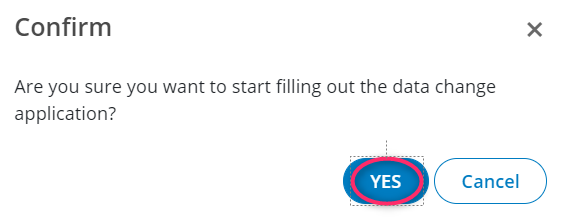
Step 9. Click on YES.
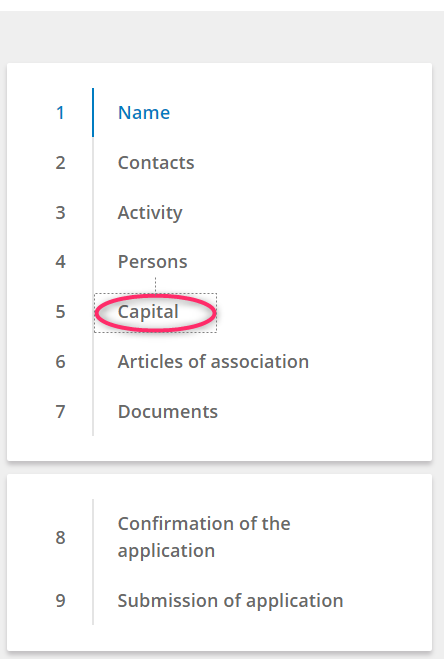
Step 10. From the menu on the left, select the fifth item Capital.
Step 11. Click on the Change button.
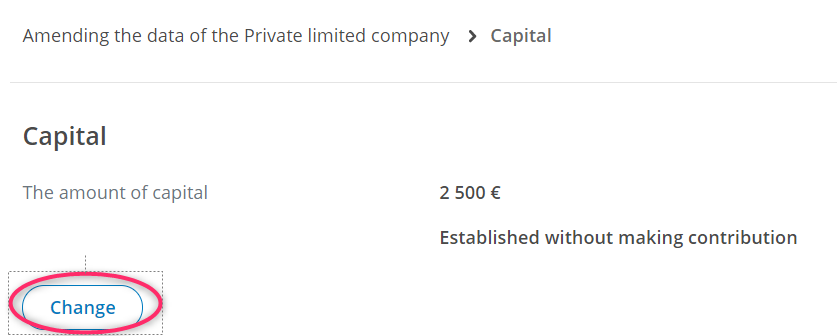
Step 12. Uncheck Established without making contributions.
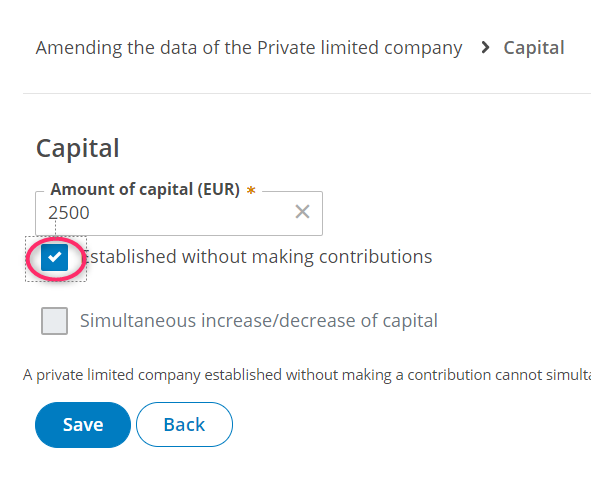
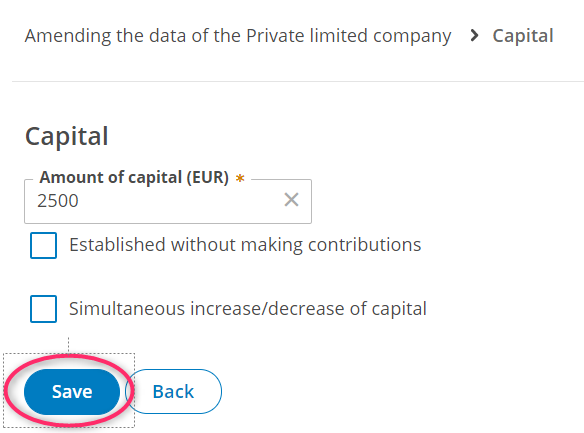
This should look like the picture below. After that, click on the Save button.
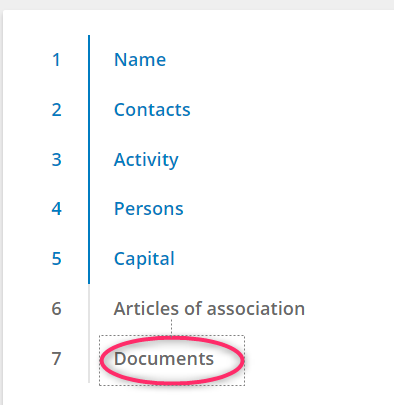
Step 13. From the menu on the left, select Documents from the seventh item.
Step 14. Click on Upload documents, select the file with the bank notice.
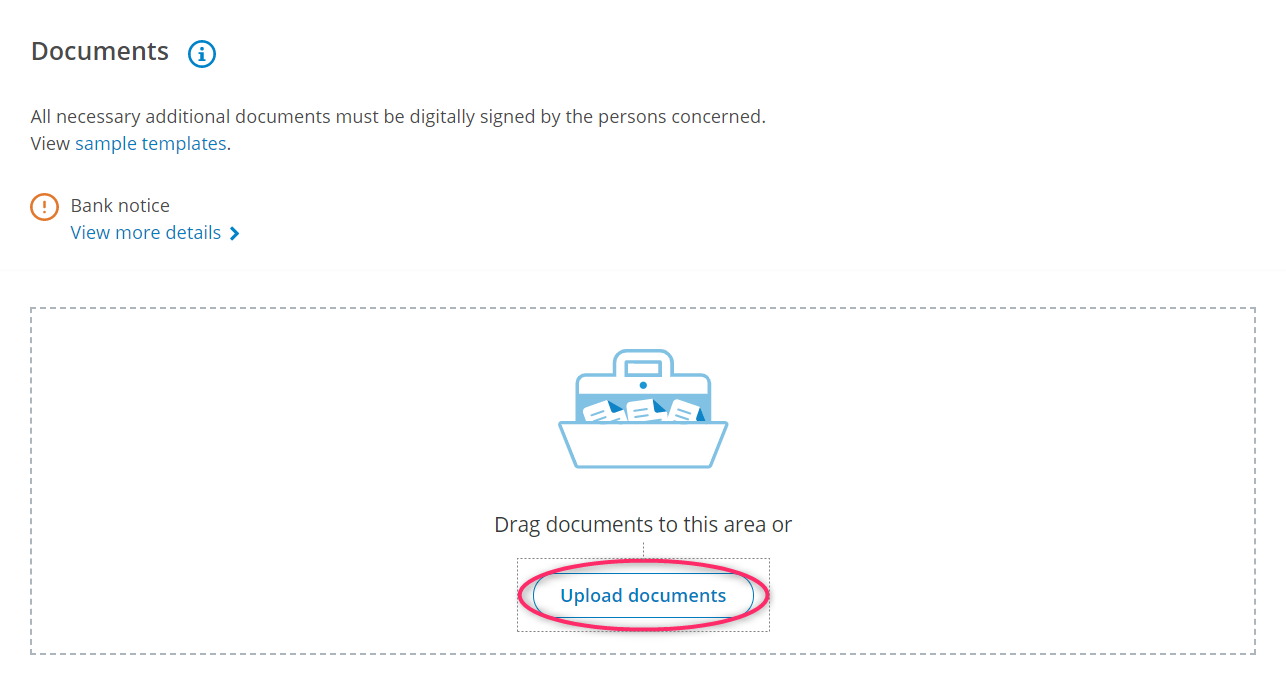
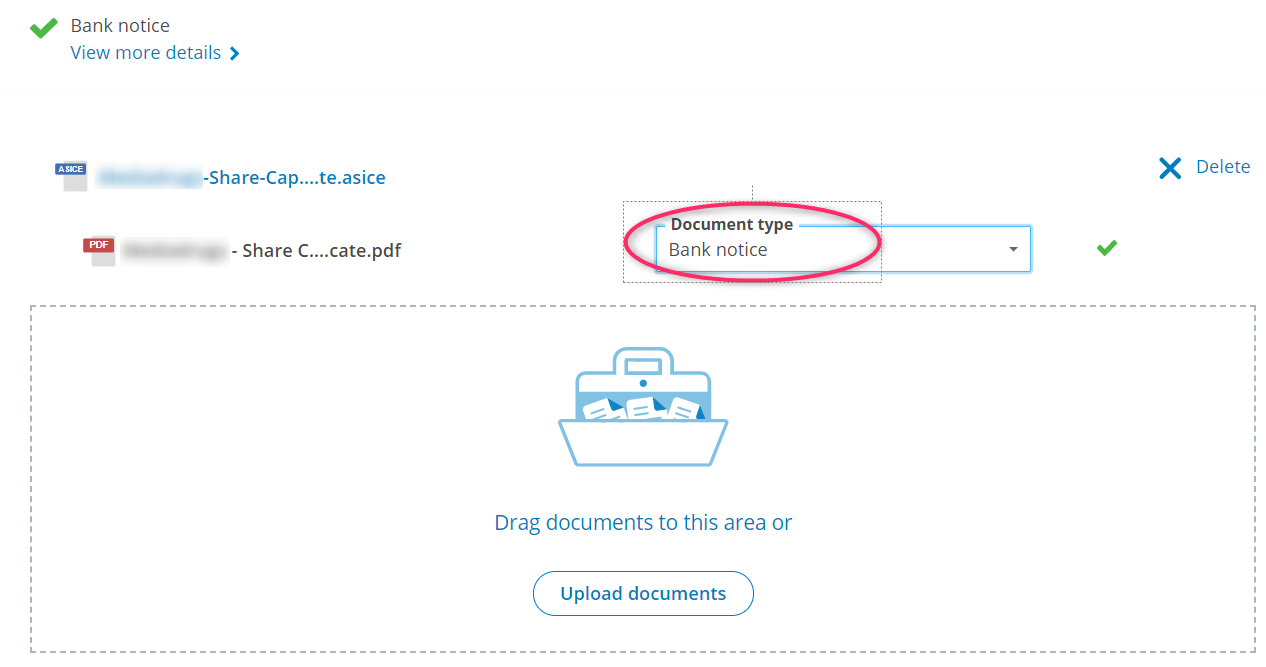
After uploading, select the type of document - Bank notice.
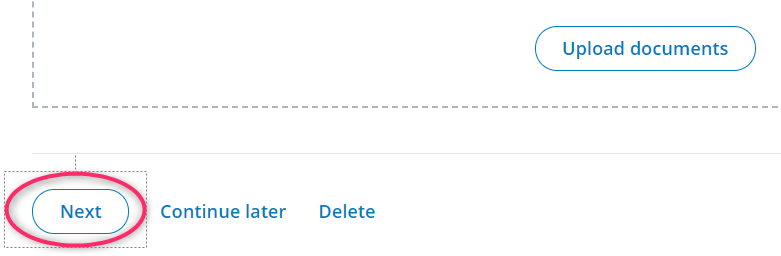
Step 15. Click on the Next button.
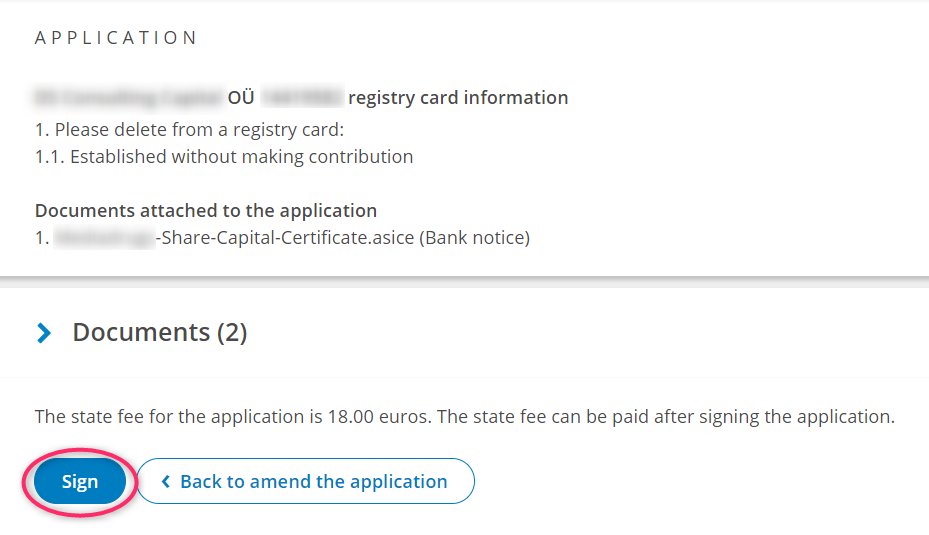
Step 16. Scroll to the bottom of the page and click on Sign. Sign the application with your e-Residency card using your PIN2.
If the signing was successful, you will see the status Signed.
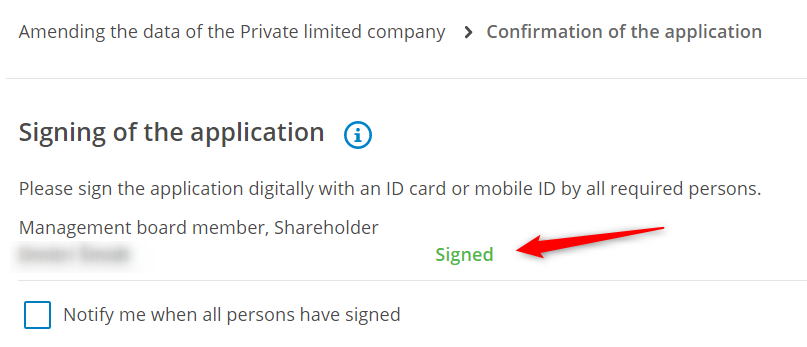
Step 17. Scroll to the bottom of the page and press the Next button.
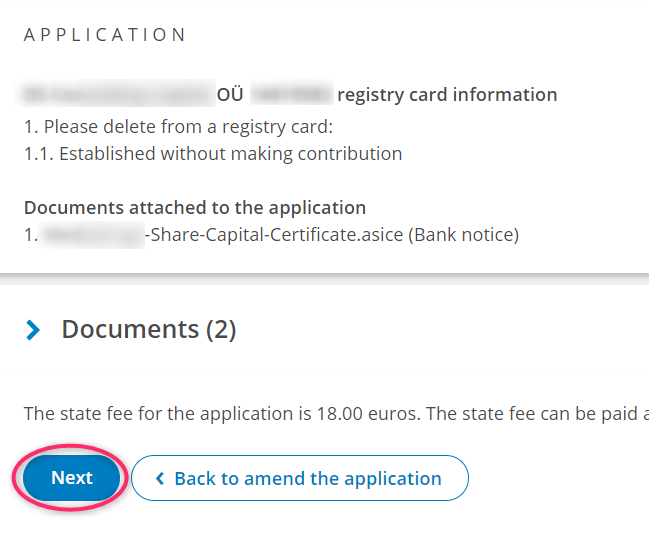
Step 18. The state fee for this application is 18 euros.
If you have an account with an Estonian bank, pay the state fee using the bank link.
If you don't have an Estonian bank account, click on the button Payment of the state fee at a bank branch or via an Internet bank.
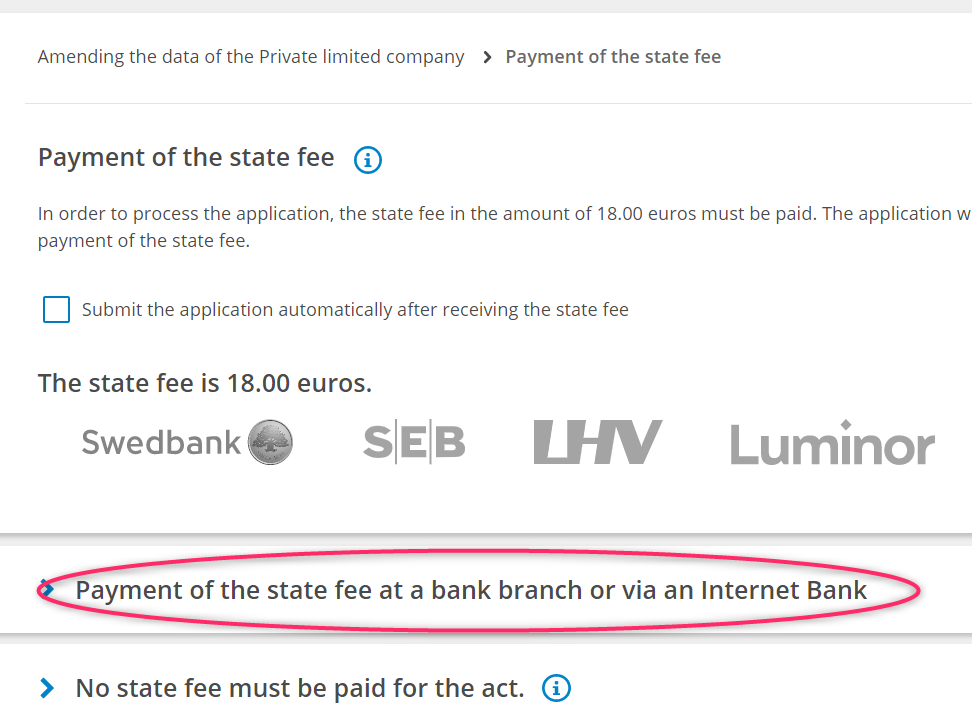
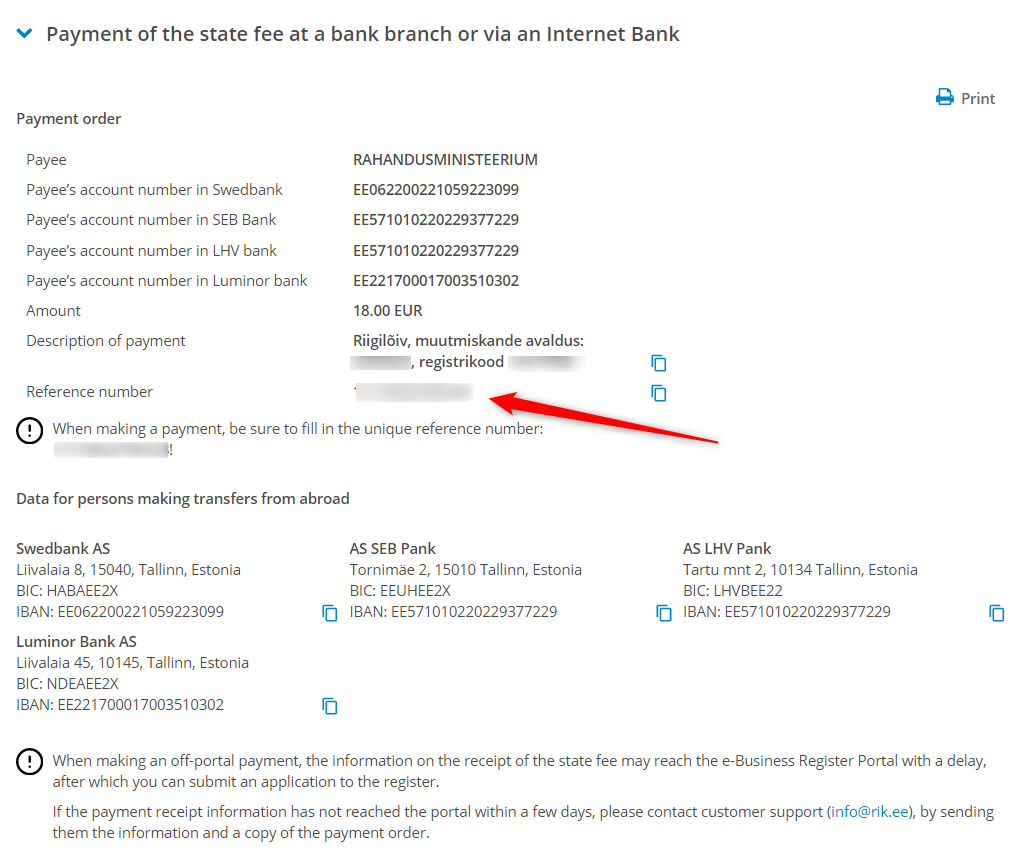
Clicking on this button displays the details for making the payment.
NB! Making a payment in your bank, you should always indicate the Reference number. If your bank only allows you to choose either Reference number or Description, choose Reference number.
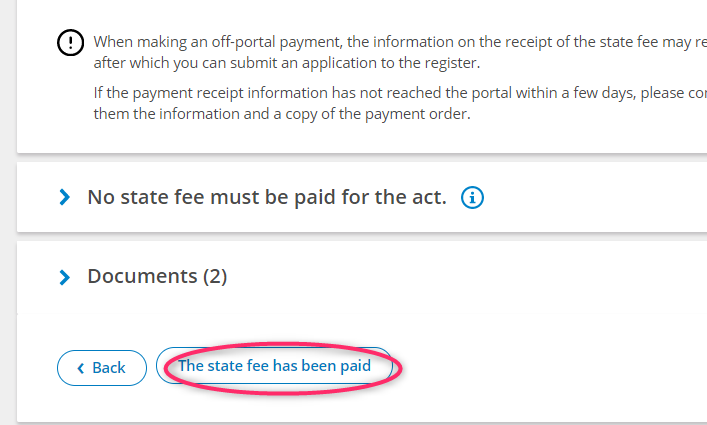
Step 19. After payment, click on the button The state fee has been paid.
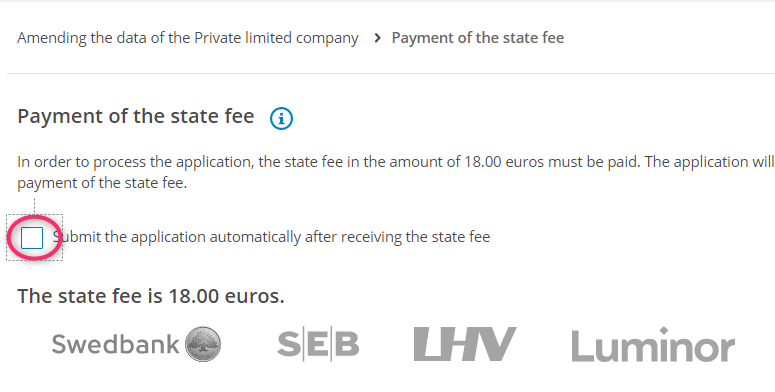
Or put a note at the top of the page that the application should be automatically submitted after the Estonian Ministry of Finance has received the state fee. Then, once the state fee is received, the application should go automatically to the register. But it is better to check it after a couple of days anyway.
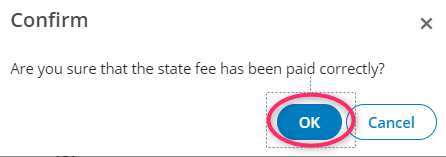
If you have selected the option The state fee has been paid, click OK in the next dialogue box.
Step 20. Click on the SUBMIT APPLICATION button.
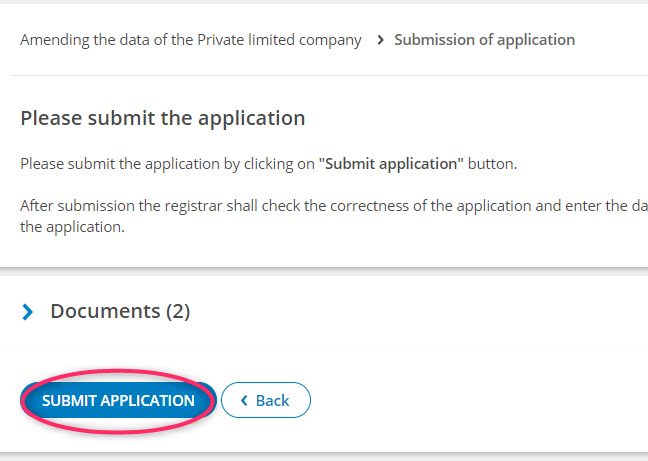
After this the system will notify you that the application has been successfully sent to the register.
Notifying the accountant about the contribution and registration of the share capital.
Please don't forget to notify your accountant as soon as you have sent your application to the register.
The accountant has to declare the contribution of share capital on the TSD tax return.