If you have been sent an agreement signed by another party using an Estonian e-signature, you can also sign it with your e-Residency card.
How to understand that you have been sent a contract signed with an Estonian electronic signature?
A file signed with an Estonian electronic signature may have two extensions - .bdoc or .asice.

How to add a signature to a contract?
Step 1. Open the contract file. It will look like this.
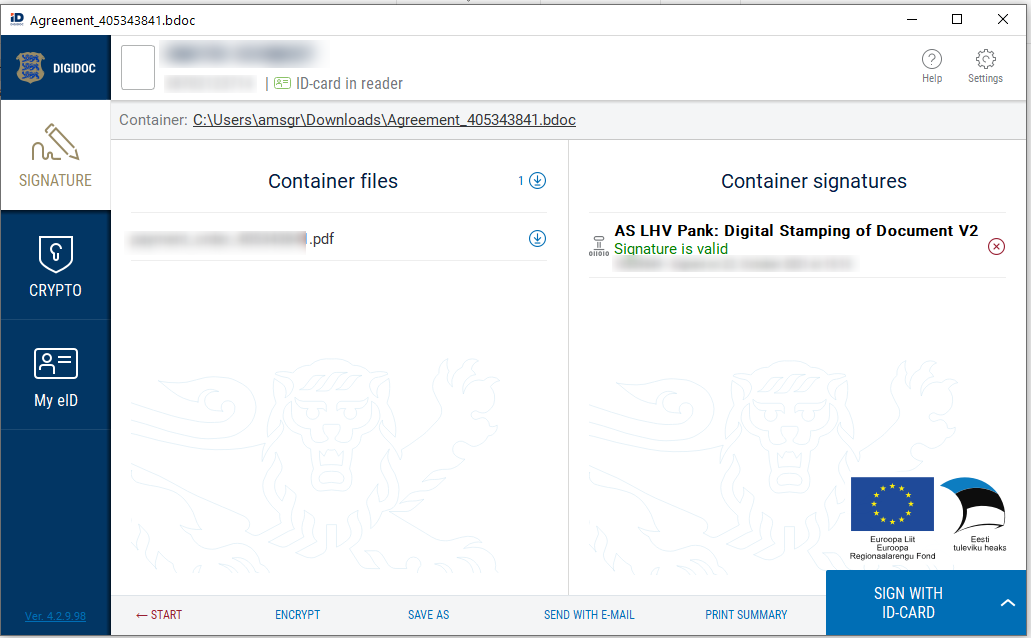
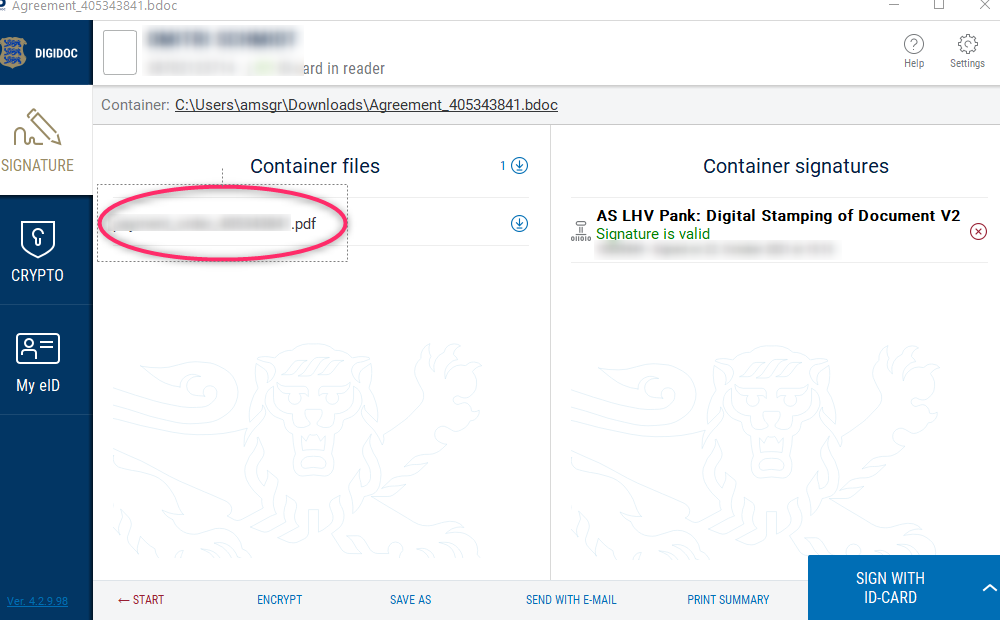
Step 2. Open the contract and review it. To do this, click on the file name.
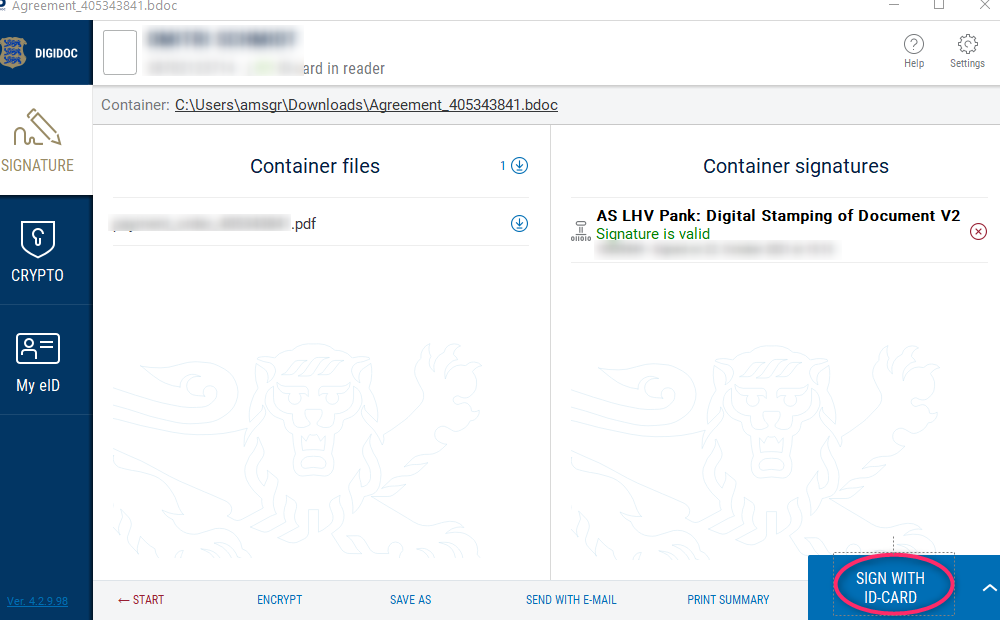
Step 3. After reading the contract, please begin the process of adding your signature. To do this, click on the SIGN WITH ID-CARD button.
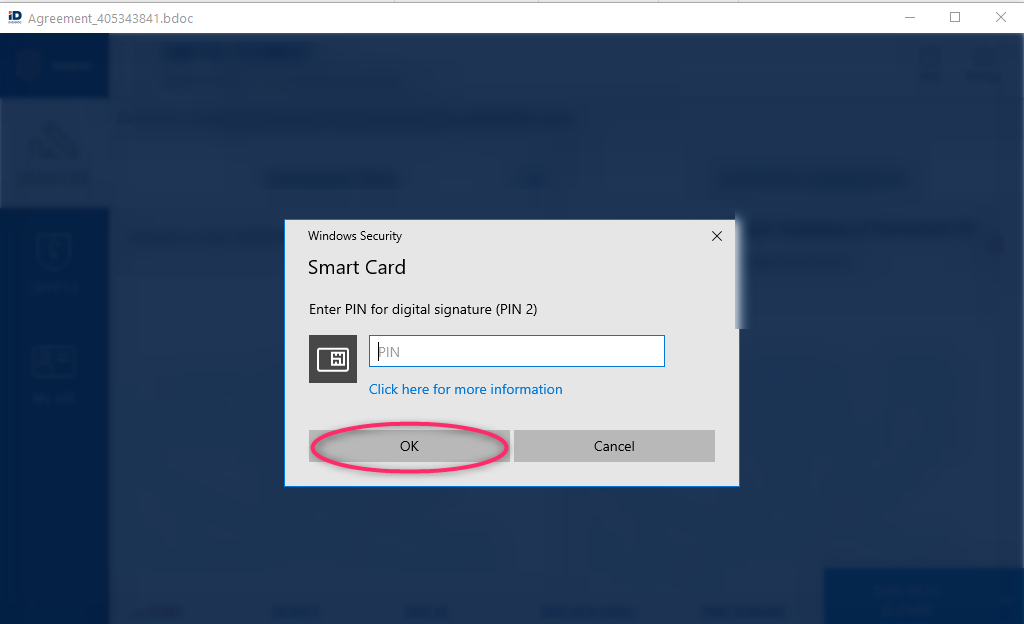
Step 4. A new dialog box is displayed. Enter the PIN2 from your e-Residency card and press OK.
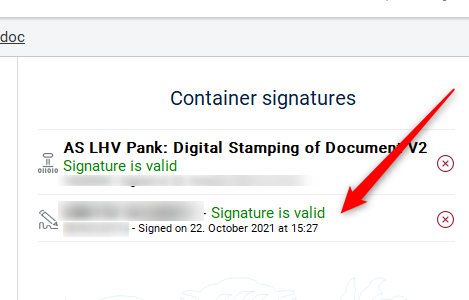
Step 5. Make sure that your signature appears next to the first signature as well.
Step 6. Close the electronic signature file by clicking on the cross.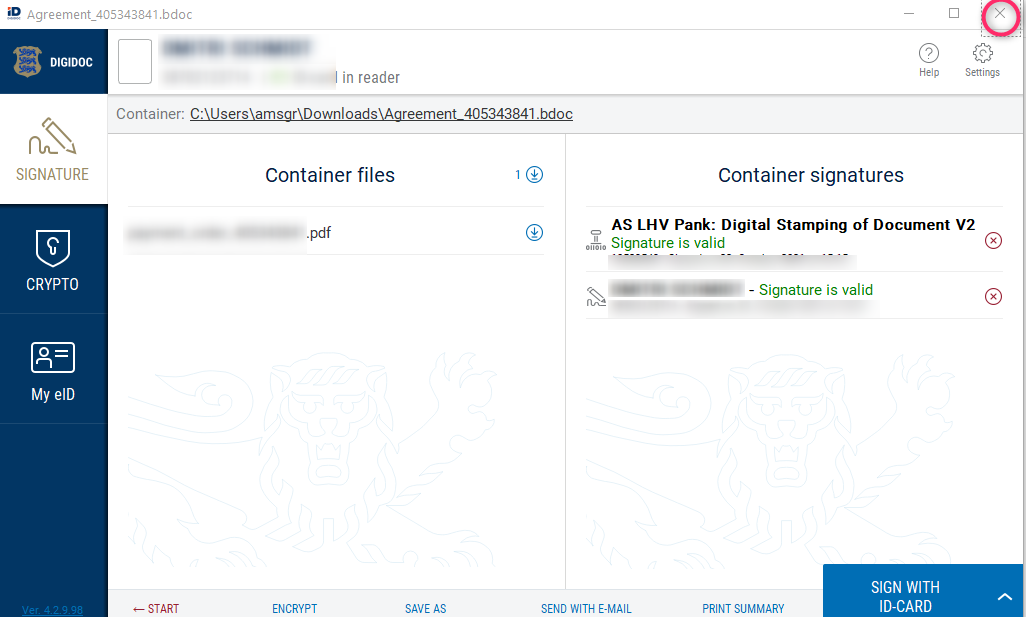
And email it to whoever sent it to you.
NB! The signature will be added exactly to the original file you uploaded.