How to give an accountant access to PayPal?

Step-by-step AccRes guide: How to give an accountant access to PayPal. Part of the Banks help section for Estonian companies.

Step 1. Log in to your PayPal business account.
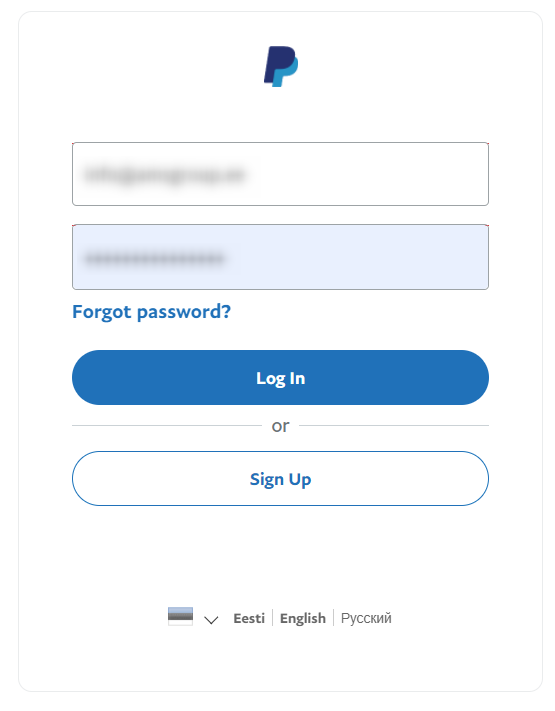
Screenshot 1 for the article "How to give an accountant access to PayPal?"

Step 2. Hover over your name in the top-right corner.

Screenshot 2 for the article "How to give an accountant access to PayPal?"

Step 3. In the dropdown menu, select Account Settings.
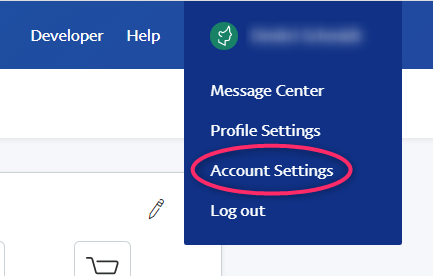
Screenshot 3 for the article "How to give an accountant access to PayPal?"

Step 4. On the opened page, select Account access.
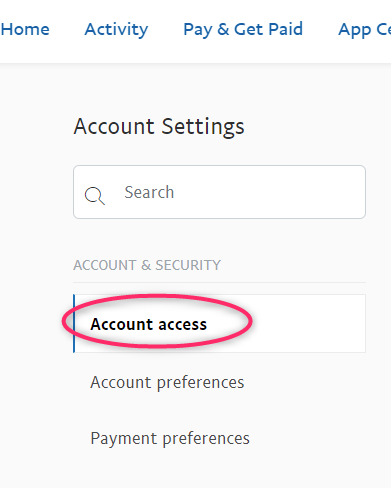
Screenshot 4 for the article "How to give an accountant access to PayPal?"

Step 5. Click Update.

Screenshot 5 for the article "How to give an accountant access to PayPal?"

Step 6. Click Add user.

Screenshot 6 for the article "How to give an accountant access to PayPal?"

Step 7. Fill in the new user's details: first name, last name, and the email address that our accountant sends you.

Enter the login in this format: YourcompanynameAMS.

In other words, add AMS to your company name.

Nationality - Estonia.

Email - info@amsgroup.ee
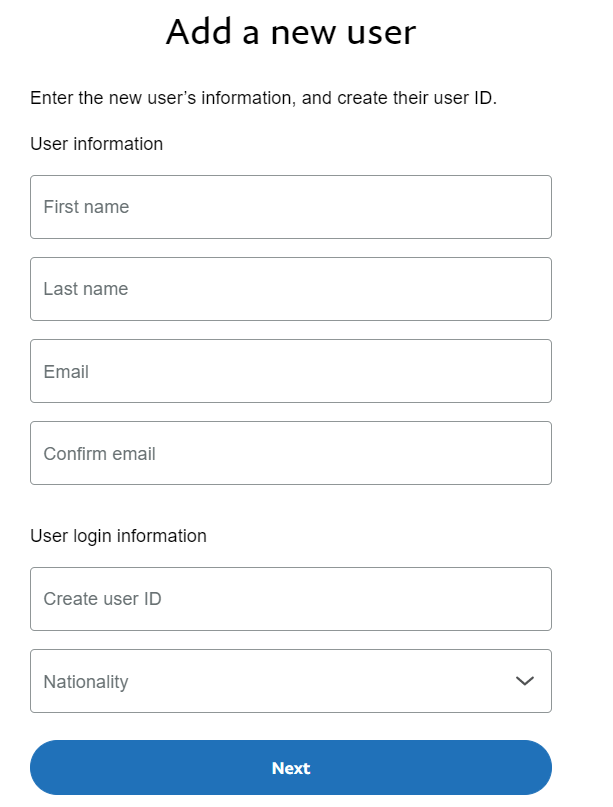
Screenshot 7 for the article "How to give an accountant access to PayPal?"

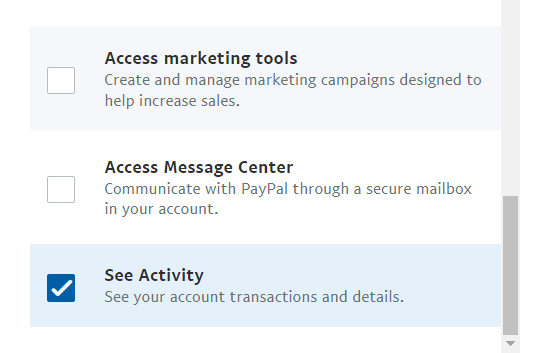
Step 8. Select the following permissions: "Acess reports", "See balance, access money movement", "See customer list", and "See Activity".
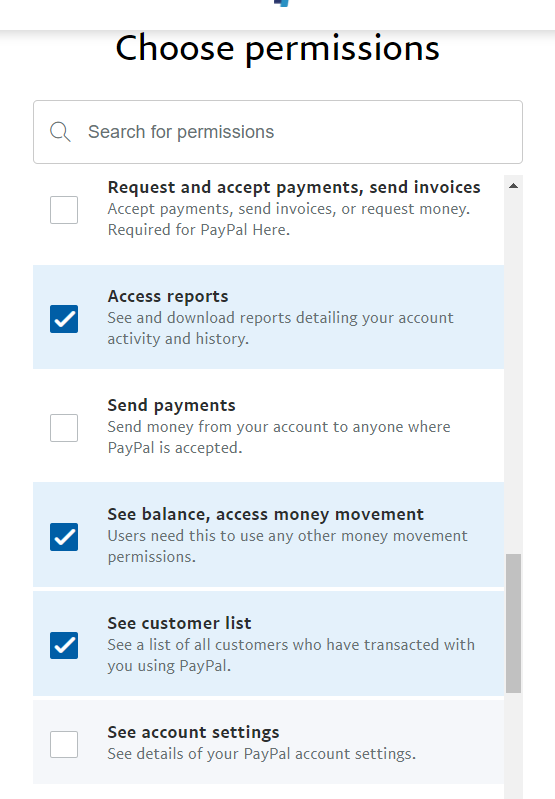
Screenshot 8 for the article "How to give an accountant access to PayPal?"

Screenshot 9 for the article "How to give an accountant access to PayPal?"

Step 9. Click Continue.

Screenshot 10 for the article "How to give an accountant access to PayPal?"

Step 10. If everything is correct, you will see a screen like this. Then click Done.
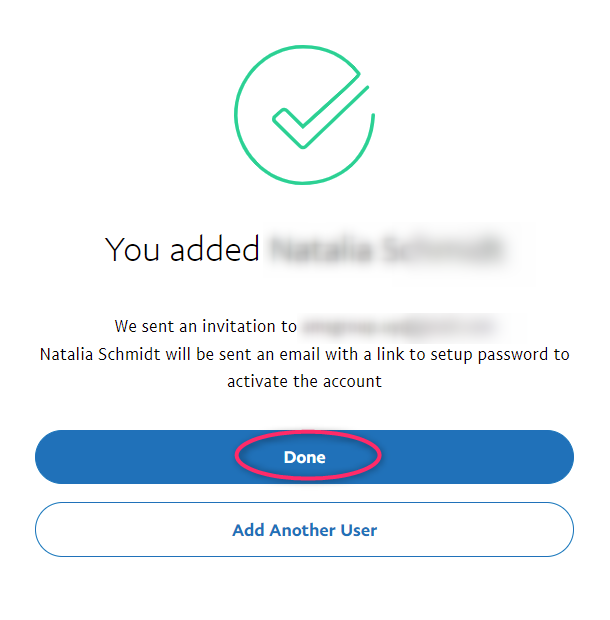
Screenshot 11 for the article "How to give an accountant access to PayPal?"

Step 11. You must now add a phone number for the new user. To do this, click the three-dot menu.

Screenshot 12 for the article "How to give an accountant access to PayPal?"

Step 12. In the dropdown menu, click View profile.
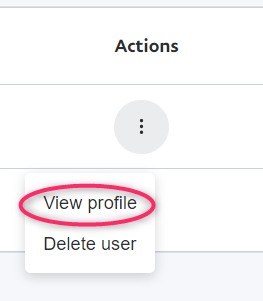
Screenshot 13 for the article "How to give an accountant access to PayPal?"

Step 13. Select Personal information.
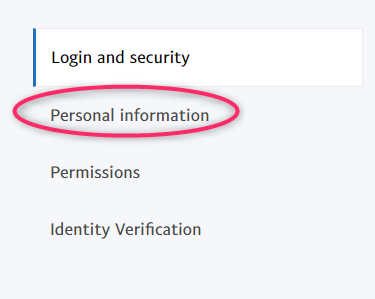
Screenshot 14 for the article "How to give an accountant access to PayPal?"

Step 14. Click + Add a phone number.

Screenshot 15 for the article "How to give an accountant access to PayPal?"

Step 15. Select mobile as the phone type and enter the phone number as shown in the screenshot below. Then click Add a phone number.
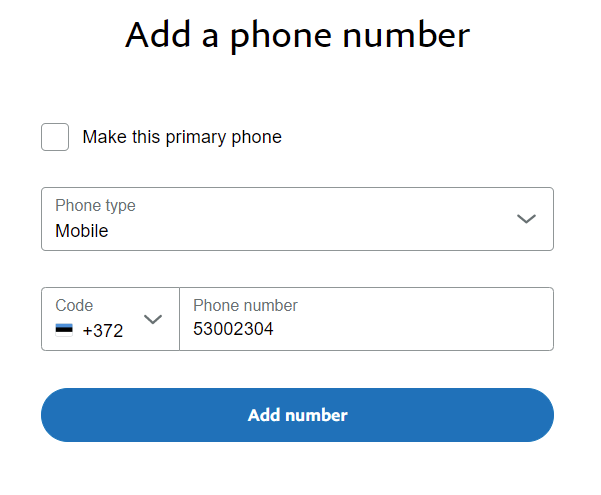
Screenshot 16 for the article "How to give an accountant access to PayPal?"

The accountant must activate the account within 24 hours.