In order to upload a statement for the accountant's work to the accountant, you need to follow the steps described below.
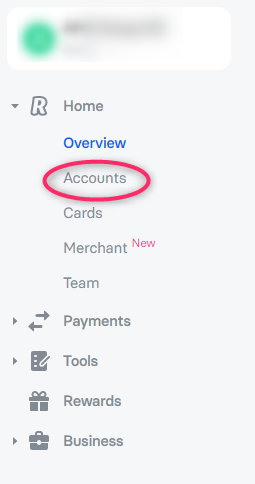
Step 1. Login to Revolut and in the Home menu click on the Accounts button.
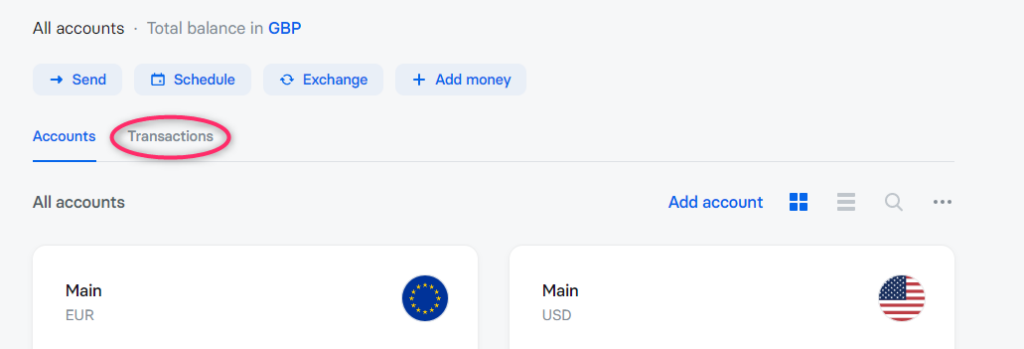
Step 2. Click on the Transactions button.
Step 3. Make sure the transaction type is All. Then click on start of account activity.

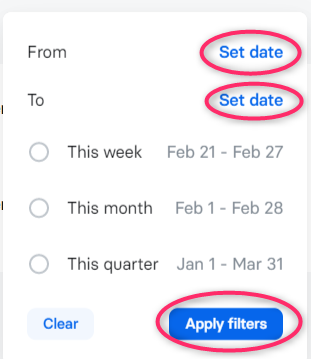
Step 4. Select the beginning of the period of the uploaded statement and the end. As a rule, this should be the past period. That is, if you do this, for example, in February, you need to select 01.01.2021 and 31.01.2021, respectively. After that click on the Apply filters button.
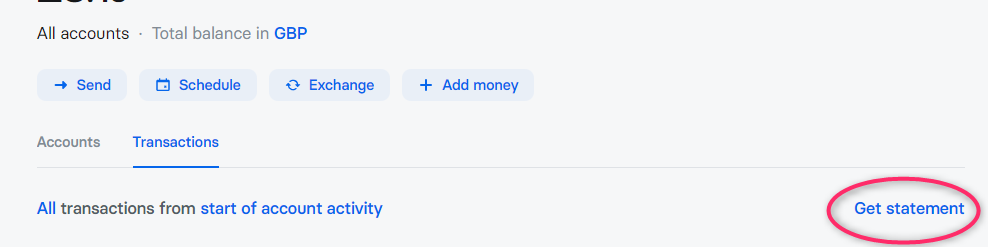
Step 5. Click on the Get Statement button.
Step 6. Click on the Download PDF button and after the pdf file is downloaded, click on the Download as CSV button.
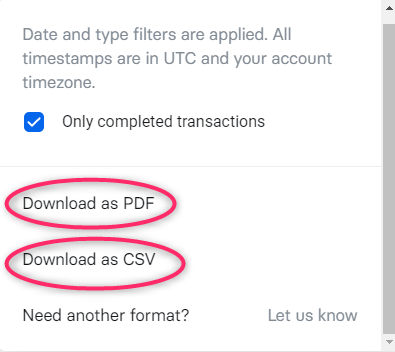
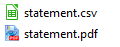
As a result, two files will be downloaded to your computer, which will need to be uploaded to Nola Accounting along with other documents for your company.