To give your accountant the right to view bank statements in SEB, follow the steps below.
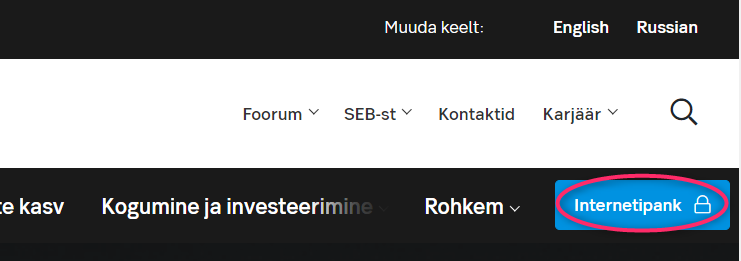
Step 1. Open the SEB website — seb.ee — and click Internetipank.
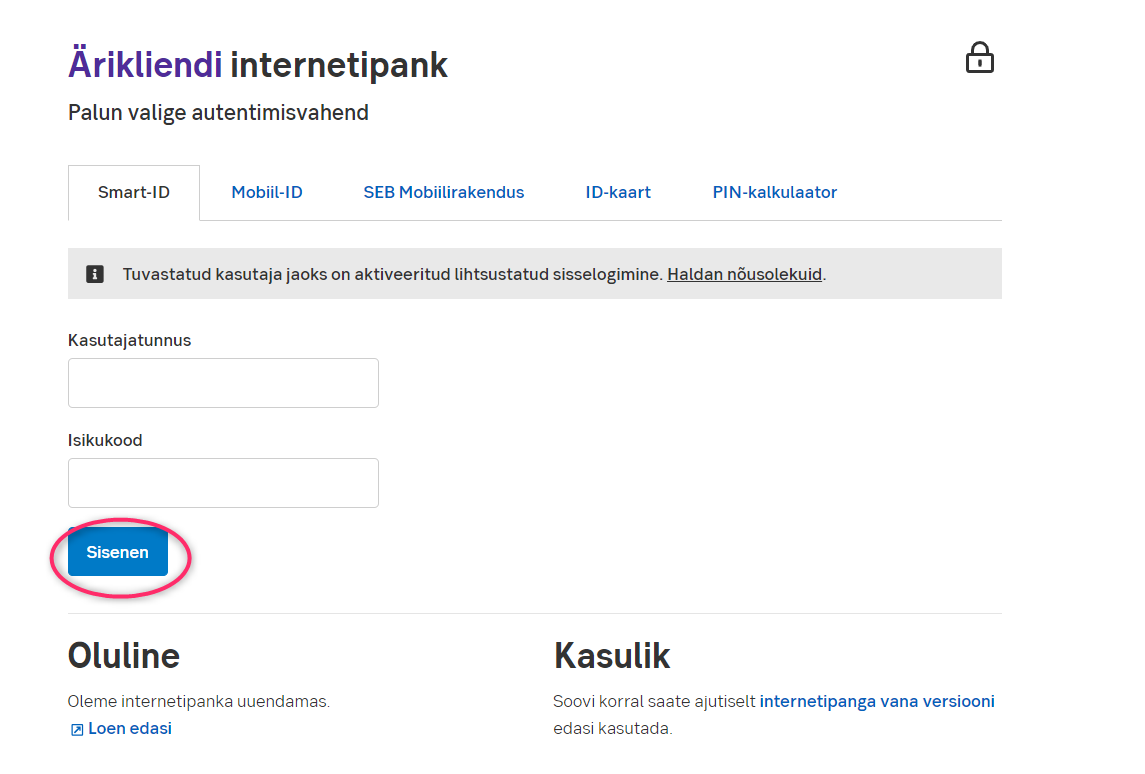
Step 2. Choose the authentication method that is convenient for you, enter your user ID (Kasutajatunnus) and personal code (Isikukood). Then click Sisenen.
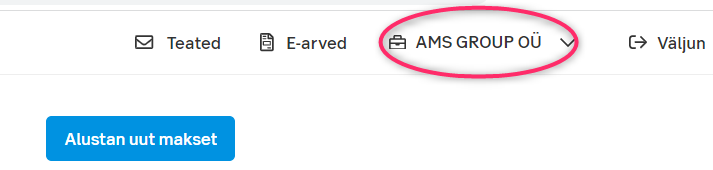
Step 3. In the opened window, make sure the company for which you want to give statement-viewing rights is selected.
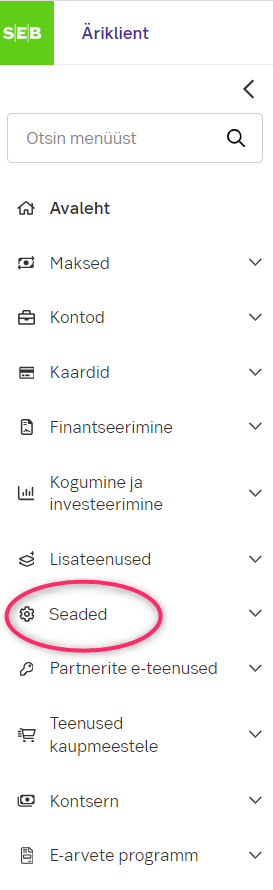
Step 4. In the left menu, click Seaded.
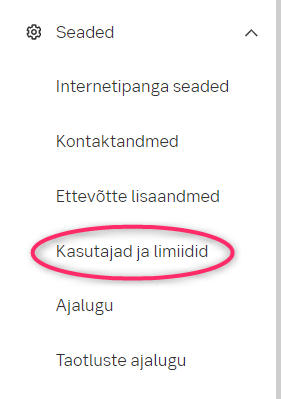
Step 5. In the submenu, click Kasutajad ja limiidid.
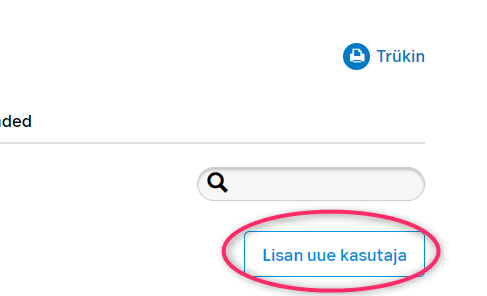
Step 6. On the opened page, click Lisan uue kasutaja.
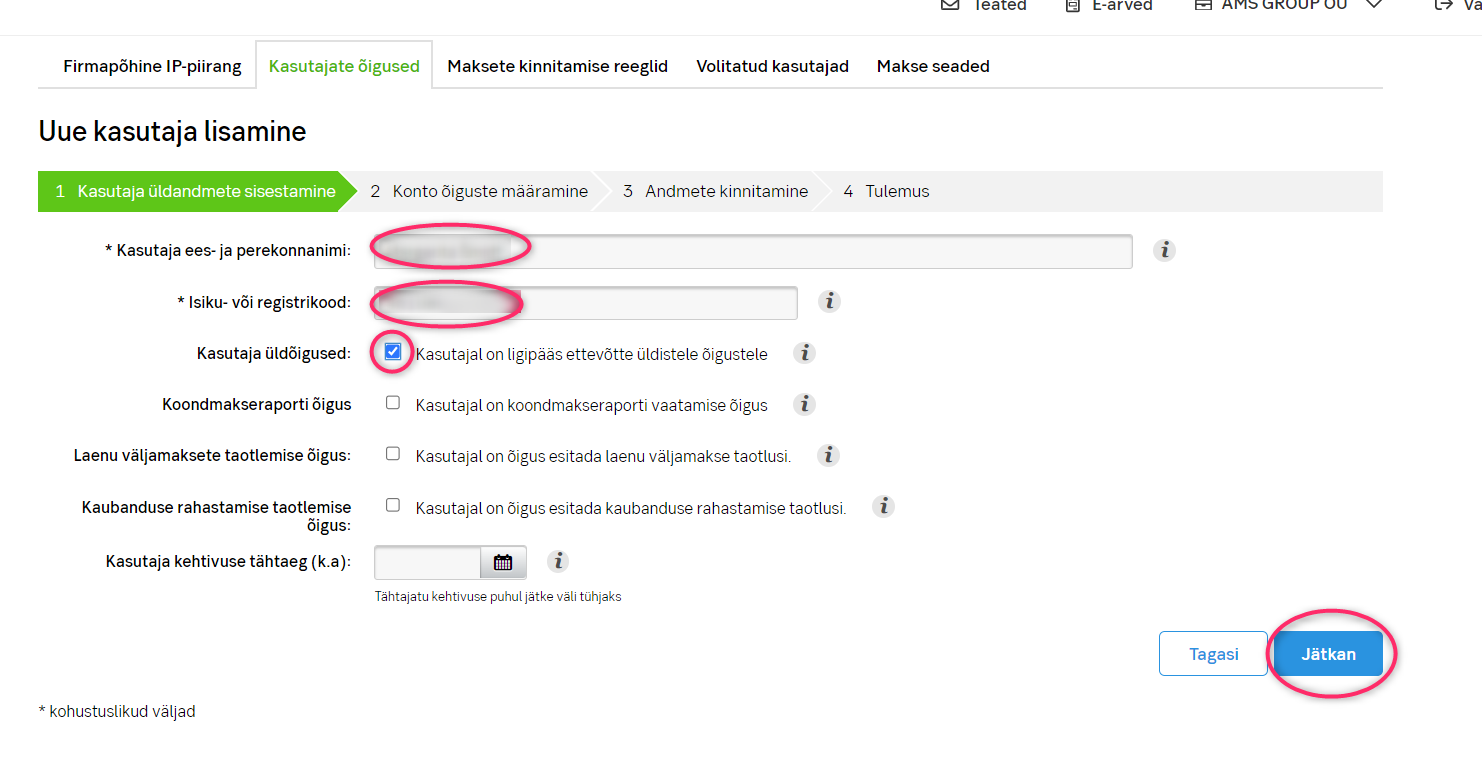
Step 7. In the kasutaja ees- ja perekonnanimi field, enter Dmitri Schmidt. In the isiki- või registrikood field, enter 38702123714. Tick Kasutaja üldõigused and click Jätkan.
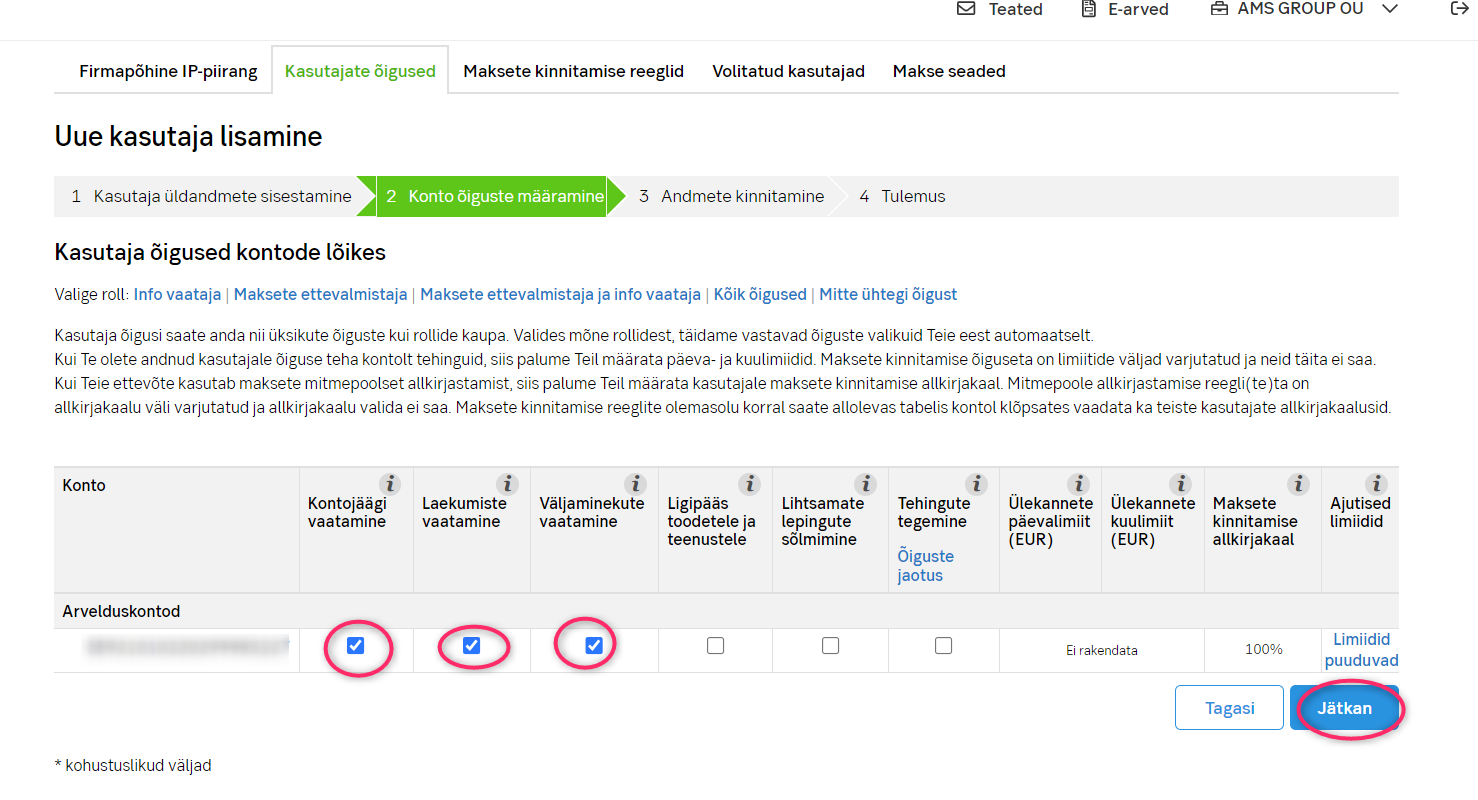
Step 8. Tick Kontojäägi vaatamine, Laekumiste vaatamine, and Väljaminekute vaatamine. Then click Jätkan.
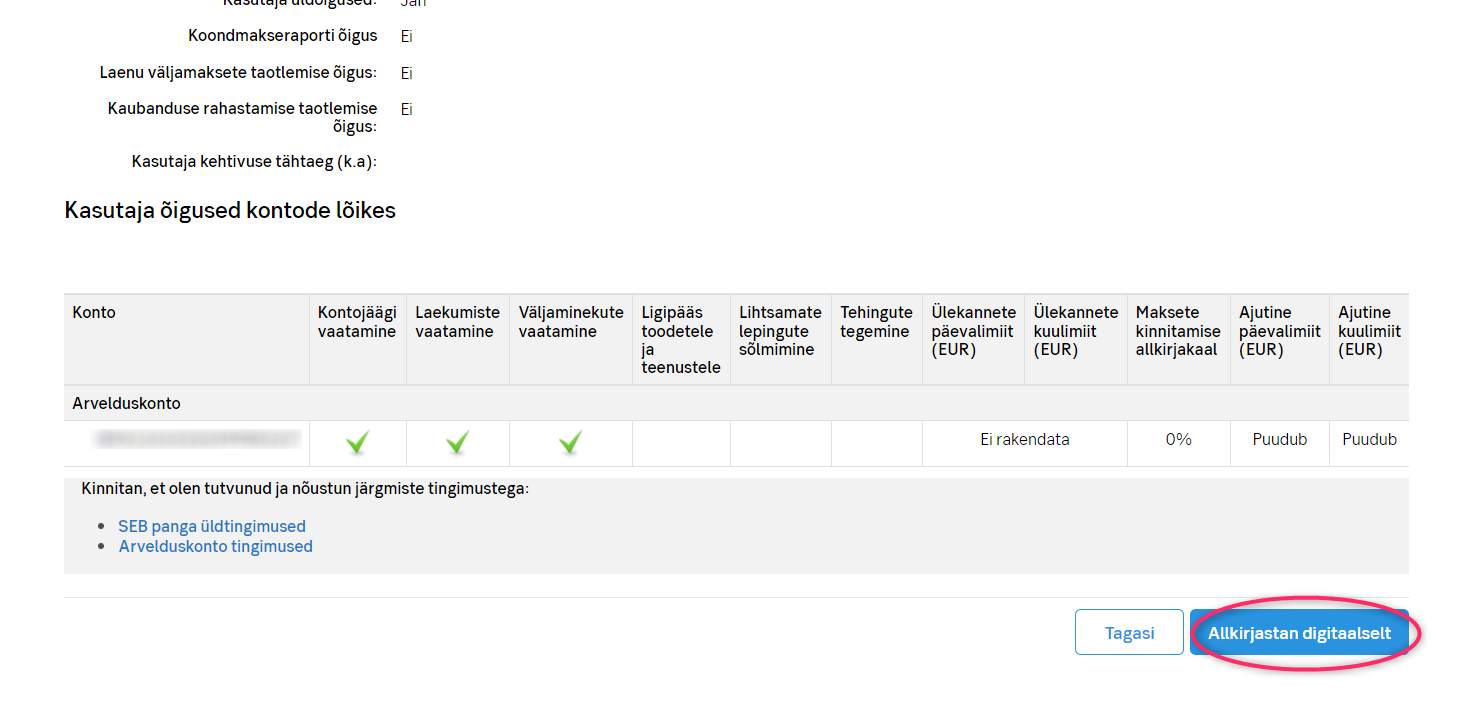
Step 9. Click Allkirjastan digitaalselt and follow the instructions on the screen.
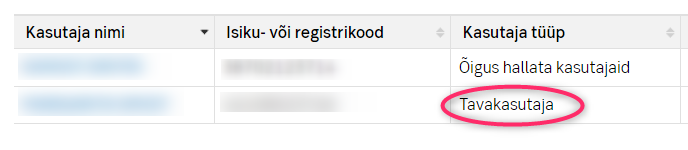
If you followed this guide correctly, at the end you will see the user list with the new user added at the Tavakasutaja permission level.