Step 1. Login to the Commercial Registry (https://ariregister.rik.ee/eng) by clicking on the LOGIN button and selecting the ID-kaart authentication method. At this step you will need the PIN1 from your e-Residency card.

Step 2. In the menu, click "Submission of a report button".

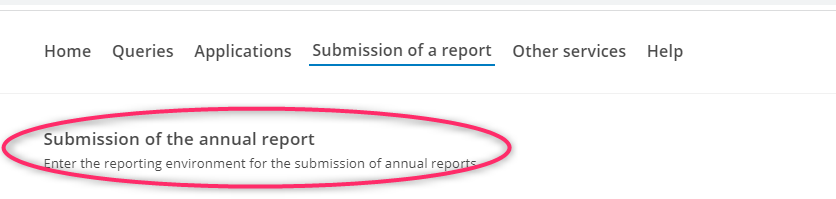
Step 3. On the submenu that opens, click "Submission of the annual report".
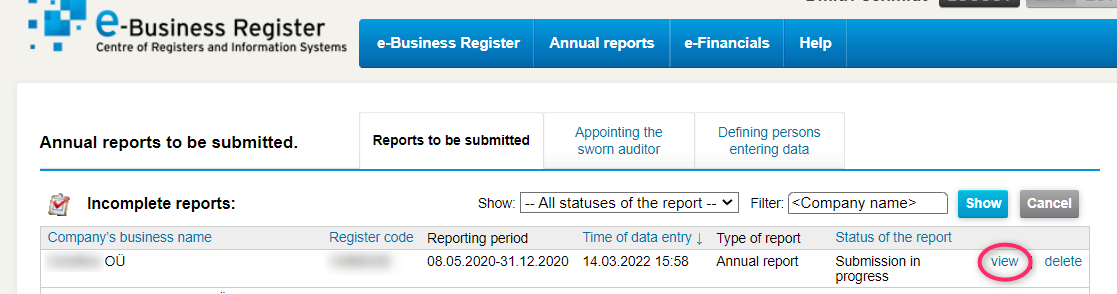
Step 4. You will see a list of the annual reports associated with you. Under Incomplete reports, find the report for the period you want to file and click on "VIEW".
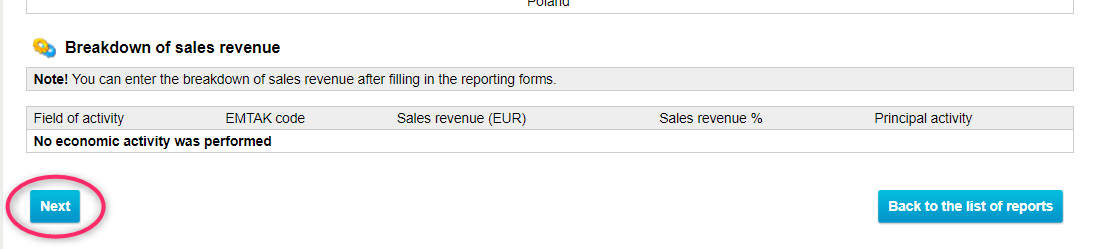
Step 5. On the page that opens, click "Next".
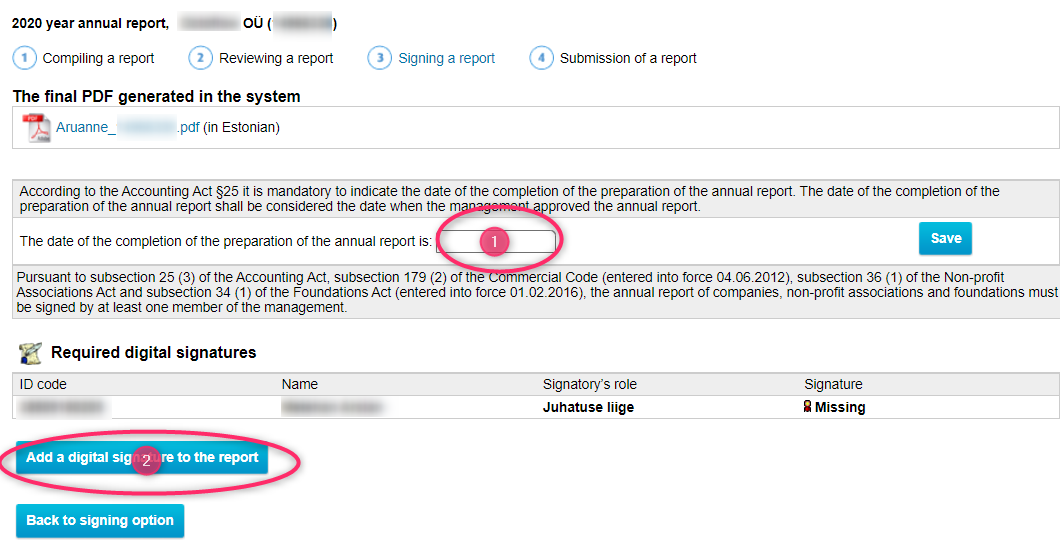
Step 6. In the empty field, enter today's date and click "Add a digital signature to the report".
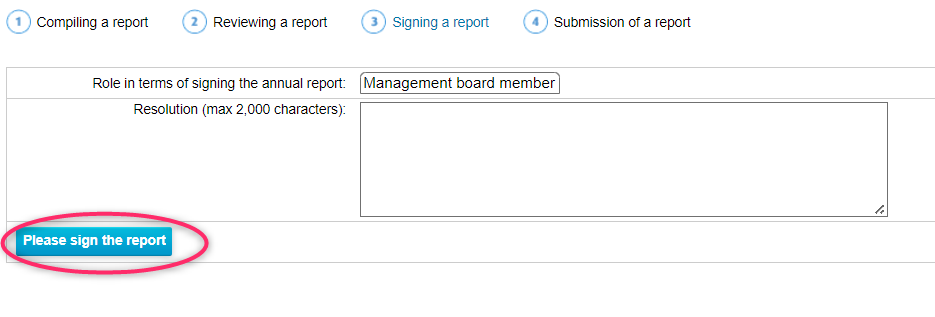
Step 7. Click the "Please sign the report" button.
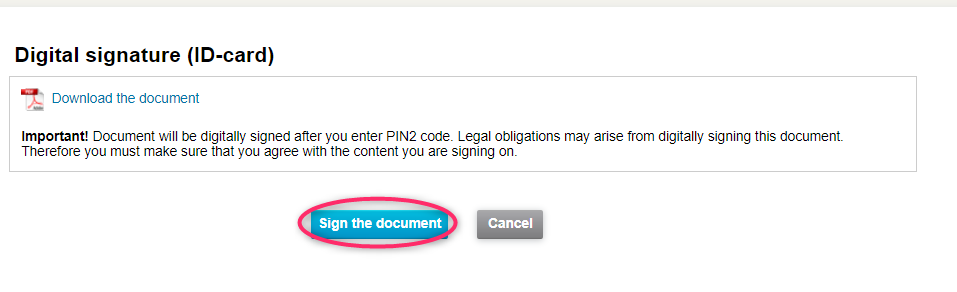
Step 8. Click on Sign the document and follow the instructions on the screen. You will need the PIN2 of your e-Residency card to sign.
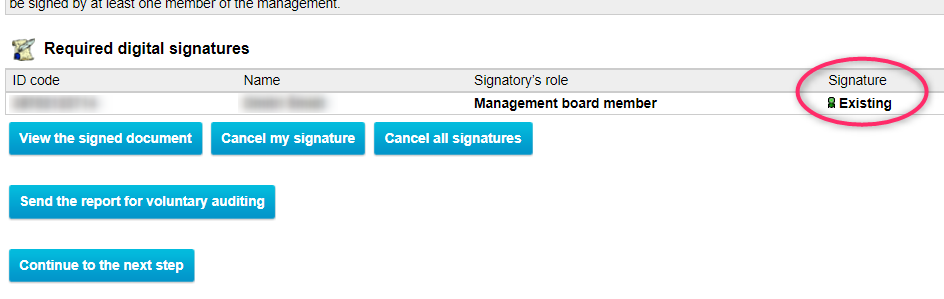
Step 9. If you have done everything correctly, your signature will show Existing status. After that, please don't forget to tell the chief accountant that you signed the report.