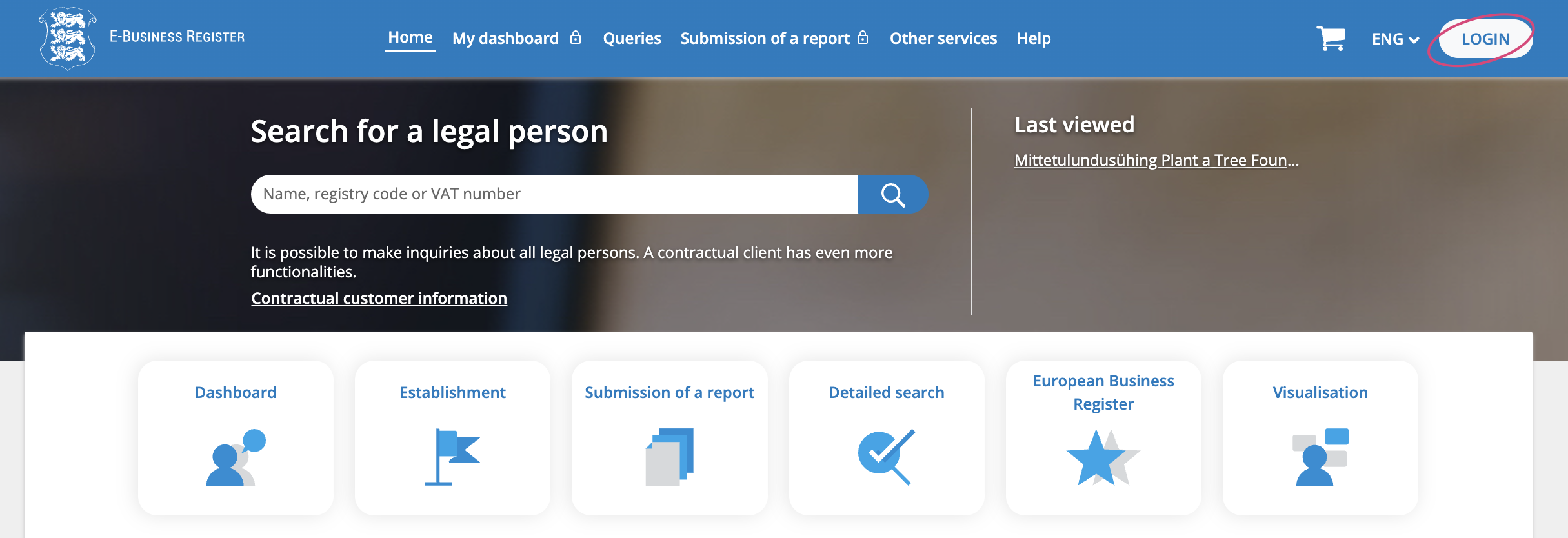
Step 1. Open the entrepreneur's portal website https://ariregister.rik.ee/eng and click on the LOGIN button.
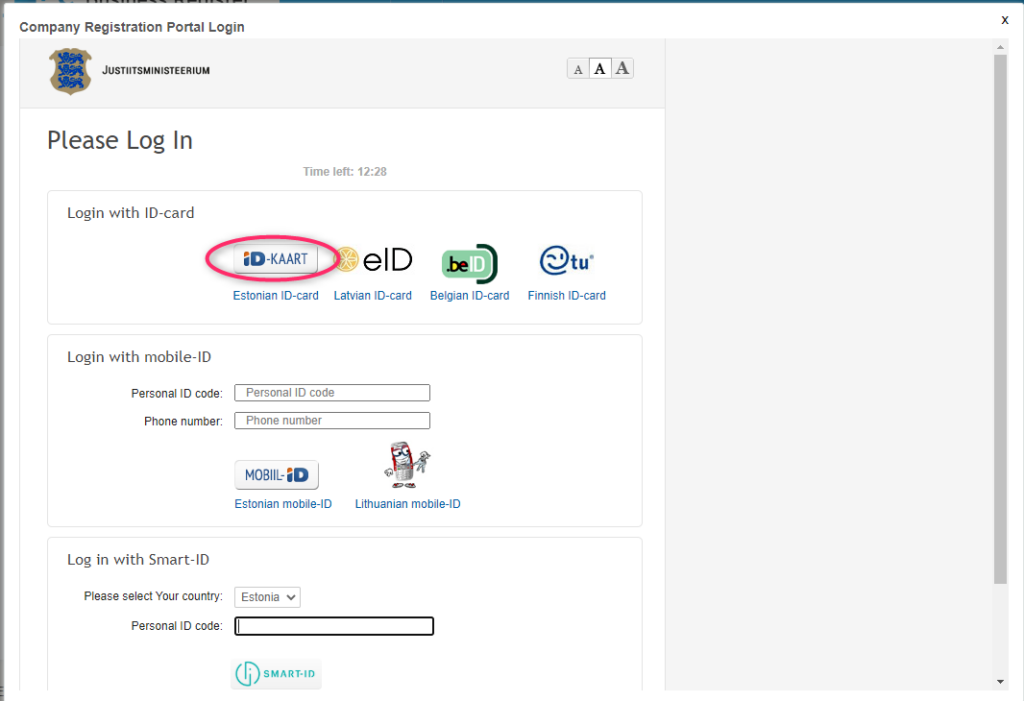
Step 2. In the window that opens, click on the ID-KAART button if you log in through an eResidency card or ID-card.
Step 3. Click on the Annual reports button.

Step 4. Click on the Defining persons entering data button.

Step 5. On the page that opens, click on the Add new person for entering data button.

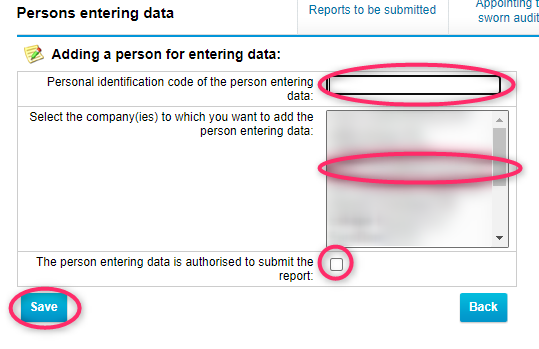
Step 6. In the Personal identification code of the person entering data field, enter your accountant's personal identification code (if you don't have one, contact your accountant).
In the Select the company (ies) to which you want to add the person entering data field, select the company that needs an annual report.
NB! Be sure to check the box next to The persin entering data is authorized to submit the report, otherwise the accountant will not be able to complete the submission procedure to the end.
And click on the Save button.
If you have done everything in accordance with these instructions, then the accountant will be able to draw up and submit an annual report.