Step 1. Log in to your Amazon seller account.
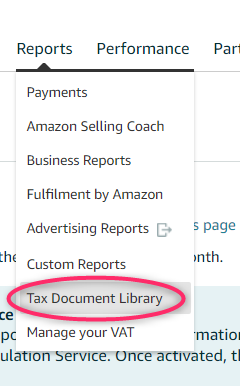
Step 2. Select Reports from the menu.

Step 3. Click on the Tax Document Library button.
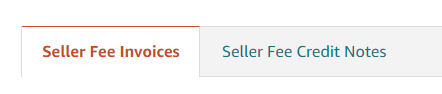
Step 4. Save all the invoices from Seller Fee Invoices and Seller Fee Credit Notes for the required period to your computer.
Switching between sections looks like this:
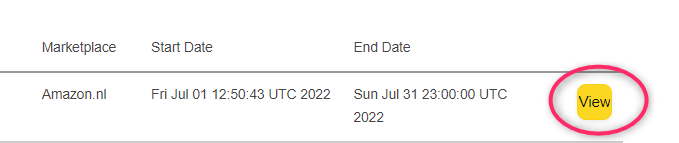
To understand which period the invoices refer to, please look at the Start Date and End Date columns. For example, if you want to download all invoices for July 2022, it would look like this in Amazon's system:
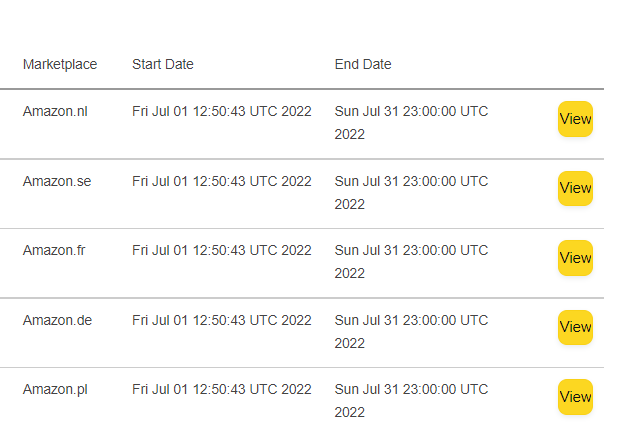
To save the invoice you need to click on the View button. The invoice will open in a new browser window. After that you can save it to your computer as you do with any file open in your browser.
Step 5. After you have downloaded all the invoices for the required period, please upload them all to Nola Accounting.